

We’ve long said that screenshots are a great way to make sure that your internal documentation is followed correctly and to share visual information with others. The built-in Snipping Tool for Windows does a great job taking basic screenshots. The one thing that that screenshot tools couldn’t typically do, however, was read. They are great at taking screenshots, but they couldn’t actually read what they were taking a screenshot of. You could use the Text Extractor PowerToy for that sort of thing if you wanted to, but now the Snipping Tool will soon support the same feature.
Once the feature is rolled out, hit Win + Shift + S or launch the app and click the new “Text Extractor” button in the toolbar.
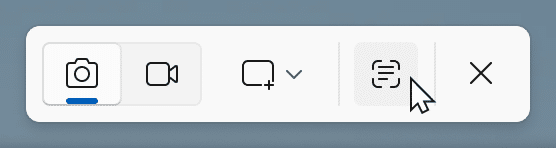
Once you’ve hit that button, you’ll be able to select a region to scan for text, just like you would for a screenshot, and you will then be able to copy the text to the clipboard so you can paste it somewhere else.
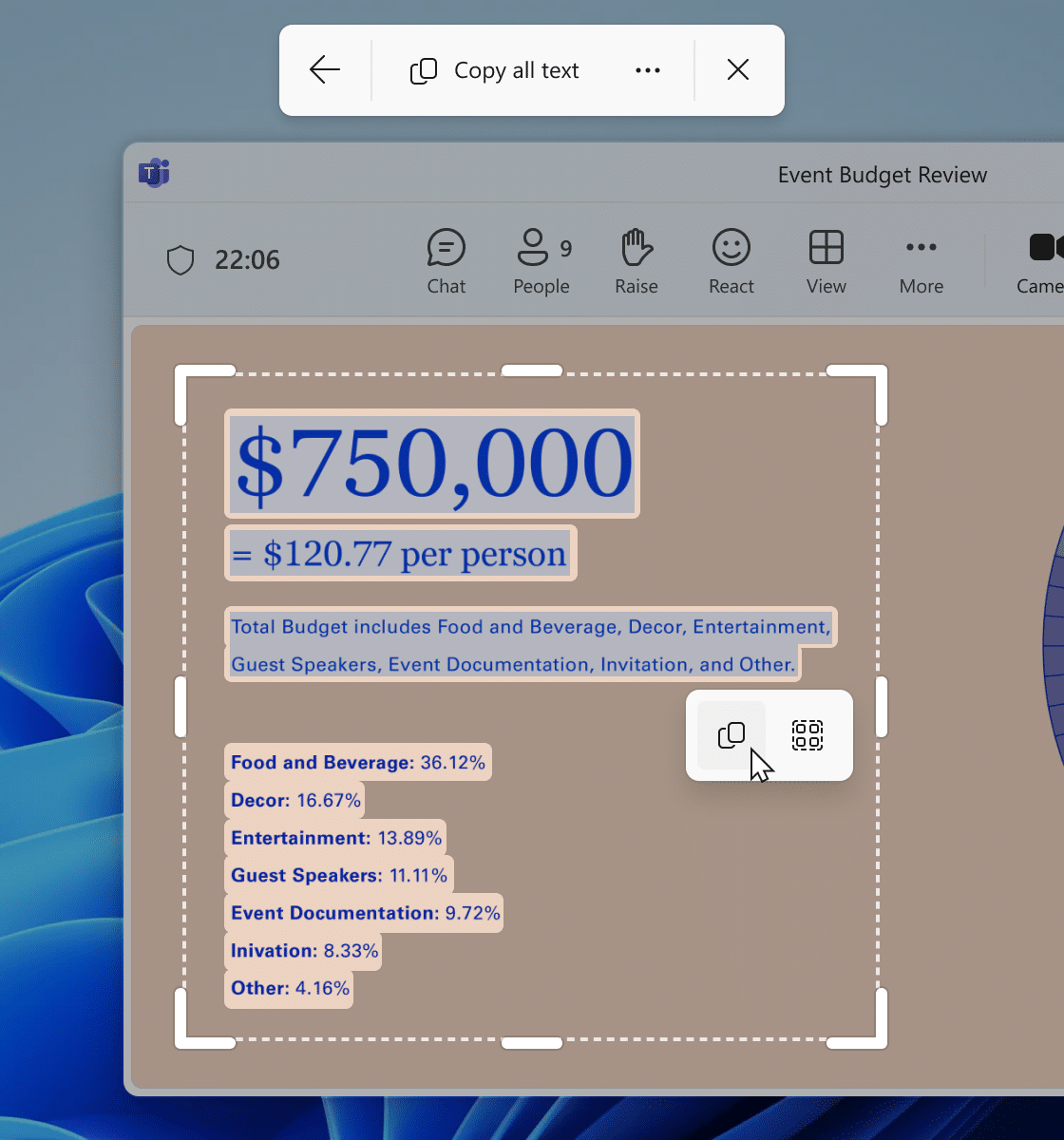
You can also explore the “More options” dropdown menu to “Remove line breaks” from copied text or speed up the process but selecting the “Automatically copy text” option, which will automatically copy all text in your selection region directly to your clipboard and then close out the snipping tool.