

If you use Google Chrome or Microsoft Edge as your day-to-day web browser (which we’re sure a good majority of you do), you’re probably familiar with those browsers’ profiles and sync functionality. That functionality allows you to setup a profile specific to your likes and also allows to sync your bookmarks, history, saved browser passwords, form data, extensions, settings, etc… among multiple computers. This makes moving to a new computer fairly easy: Just log into your browser and everything just magically shows up.
So while that feature is handy, what if you’re wanting to keep your work and personal browsing life separate? This is probably a good idea, and there are a couple different ways to do this:
- Use a different browser on your computer for work stuff and one for personal stuff (say MS Edge for work stuff and Chrome for personal stuff). This is fairly simple, but also annoying if you’d rather do everything in one browser and don’t want to have to learn another browser.
- Setup different Chrome or Edge profiles: One for work and one for personal use. That’s what we’re going to focus on here, so here’s how you do it.
Setting Up Multiple Profiles in Chrome
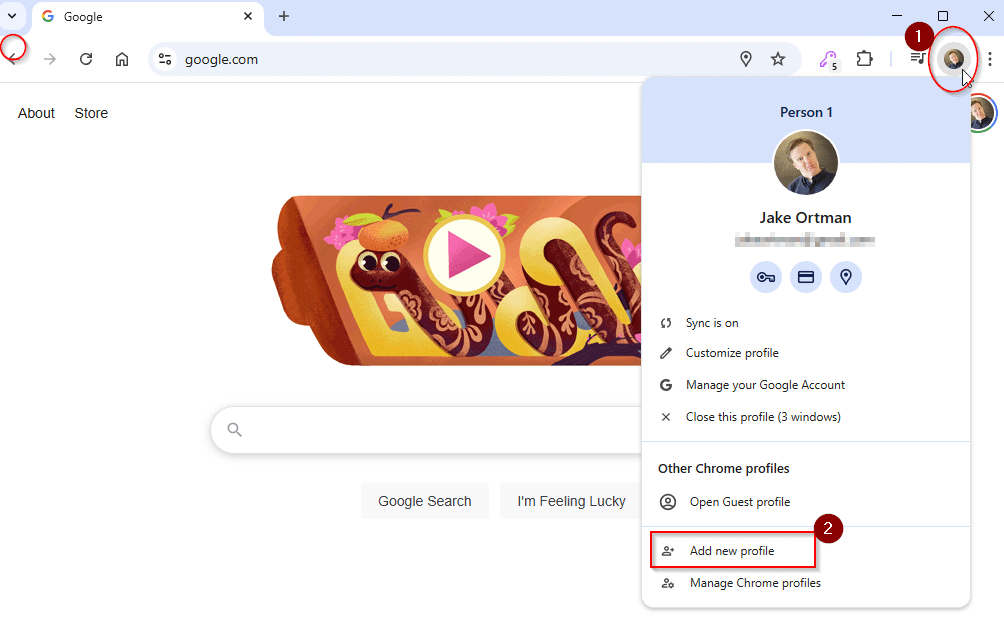
To add a new profile to Chrome, at the top right, select Profile Icon and then select Add new profile:
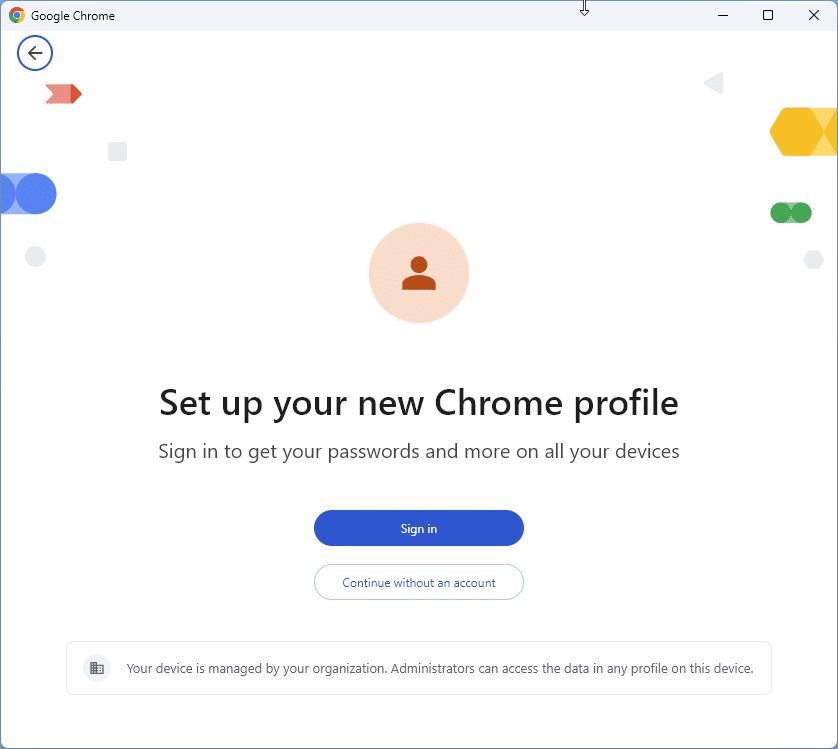
If you have another Google Account (like a Gmail account or Google Workspace account) you want to use, go ahead and sign it with it here. Otherwise, you can continue without an account, you just won’t be able to sync settings to another computer.
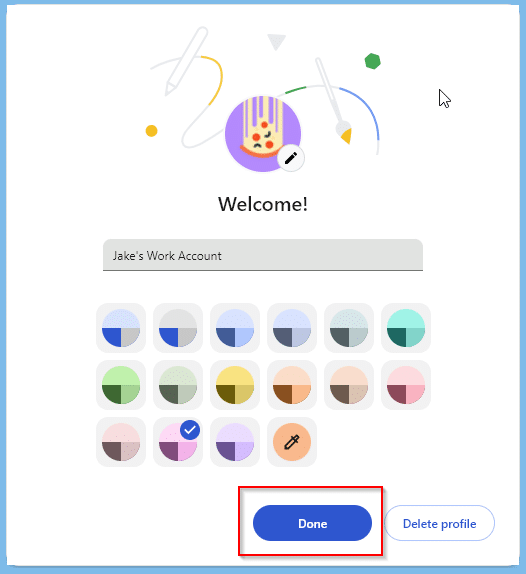
Choose your name, photo, and color scheme, if you so desire and click on “Done”.
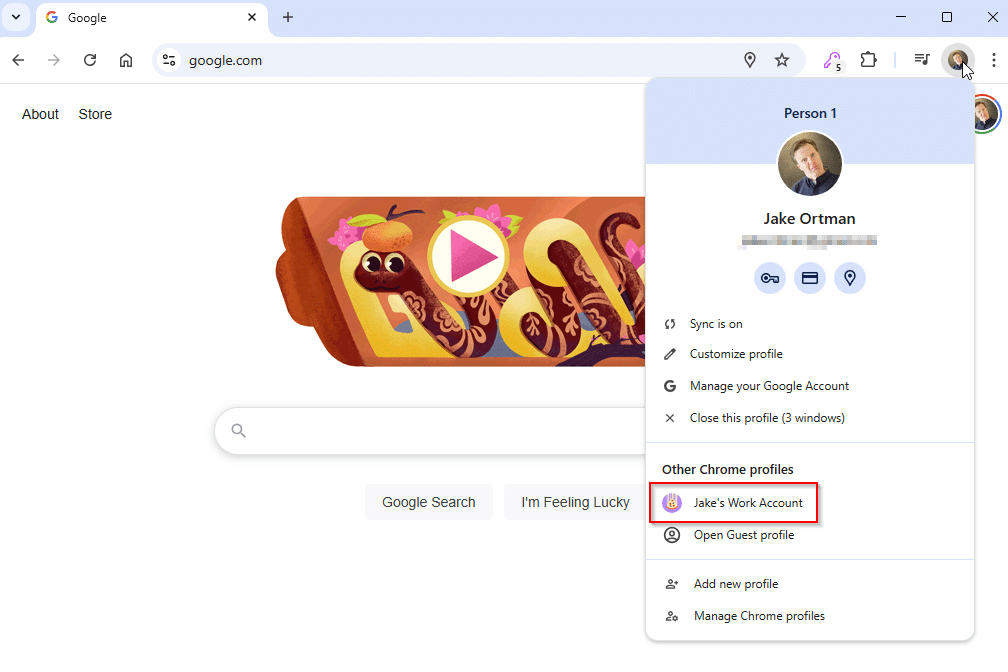
Now to switch back and forth between profiles, go back up to that profile menu, and select the profile you want to use:
Setting Up Another Profile in Microsoft Edge
If you are using Edge on a work computer and your computer is logged into and joined to Entra ID via Office 365, you likely already have a work-related profile created and in-use in Edge as it’s pretty smart that way. However, if you want to setup another separate profile for personal use (or tweak/add profiles otherwise) here’s how you do it (since the base code in Edge is very similar to Chrome’s, things are pretty similar):
First, head up to your “Profile Menu” and select “Add profile” or “Add a Personal Account” (depending on how your Edge is configured).
 Like in Chrome, you have the option to sign-in with an account or setup a new profile without signing in. In this case, a Microsoft personal or work account is needed to sync, which could either be your Office 365 account, or it could be an email address ending in @outlook.com, @live.com, or even @hotmail.com for you old-school folks (like me) who still have a Hotmail account from before Microsoft bought them.

You’ll need to confirm that you want to sync things (if you’re signing in with an account). Like in Chrome, you’ll have to confirm a few things:

And then one more time on the “Confirm and Start Browsing” button:

Like in Chrome, you can then customize the color scheme. Because who doesn’t like a bright pink dark mode browser:

Once you’ve jumped through all that, if you want to switch back to another profile, you should now see them both listed in your “Profile” menu. Select which one you want to use, and the browser should flip back to your other profile.

Following these directions will allow you to add new profiles into either Chrome or Edge and be able to switch back and forth between them effortlessly.