

You may already know that you can @tag users in Outlook and Teams to add them to conversations and tag them for follow-ups (just type @their name and it should auto complete things). But did you know that you can bring Copilot into your Teams conversations and group chats? You can in the latest version of Teams by typing @copilot to interact with Copilot. It can summarize conversations, compile information, create meeting agendas and more! Here’s how it works.
Open up an existing Teams chat and type “@copilot” into the chat window:
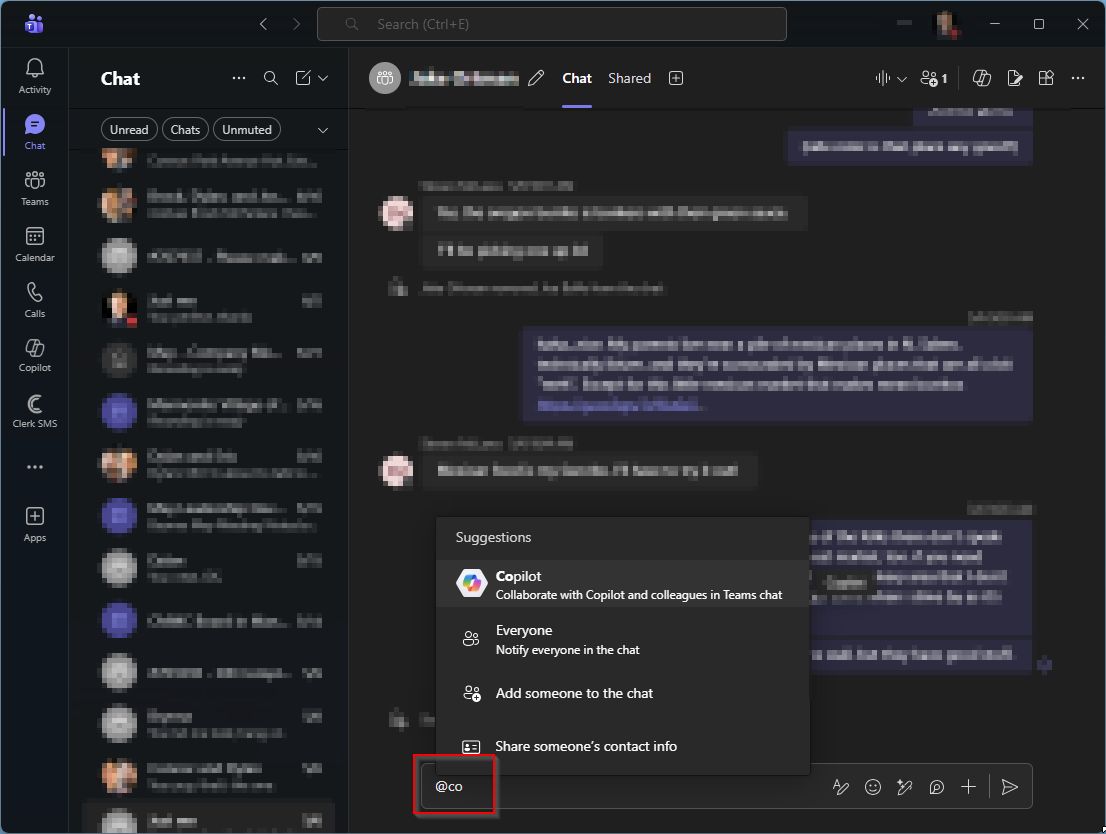
You can also hit the “Open Copilot button” on the top of the chat window. But we’re all about keyboard shortcuts and slash commands.

Once you add Copilot, it will appear in the particular chat and send a welcome message:
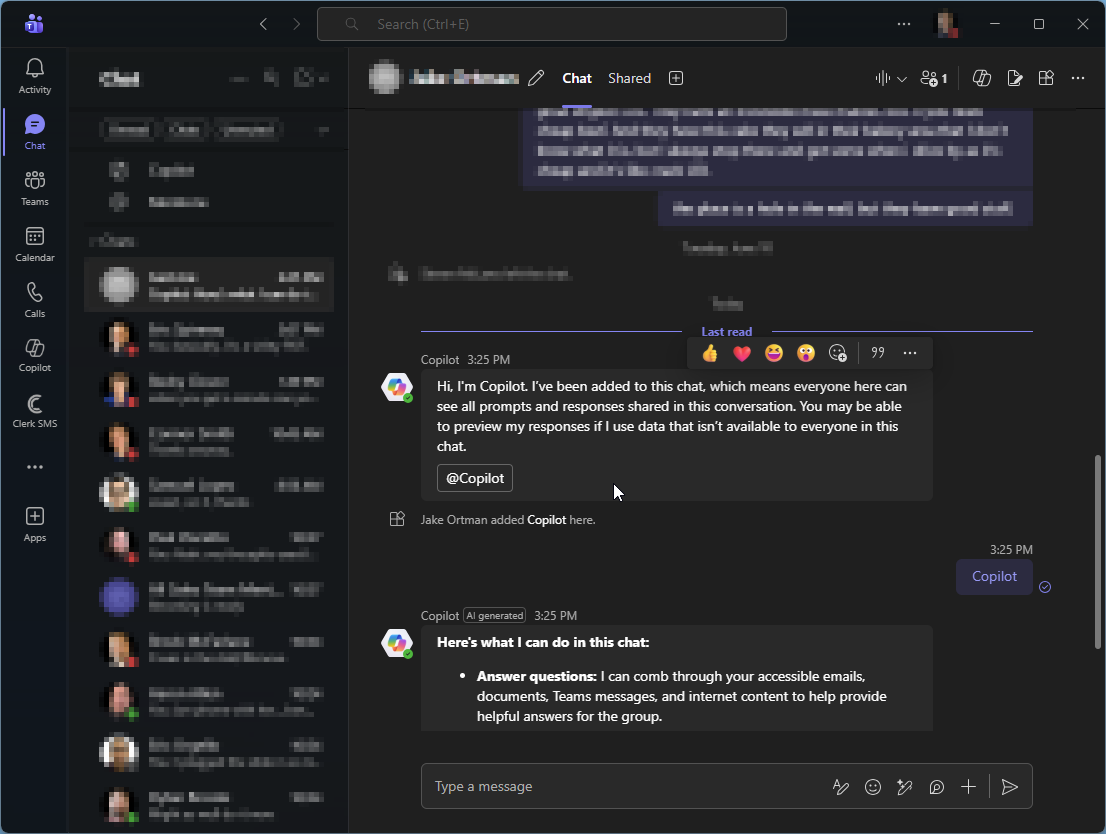
You can then ask Copilot questions anytime by typing @Copilot in the chat. The response will automatically be shown to all chat members and all members of the chat have access to the knowledge sources used to generate the answer. And like anything with AI, the better prompt you write will get you better results.
In some cases, Copilot may utilize sources that not all members of the chat have access to, so you will receive a response preview before you send it to the group and then can allow or reject the response to be sent to the group:
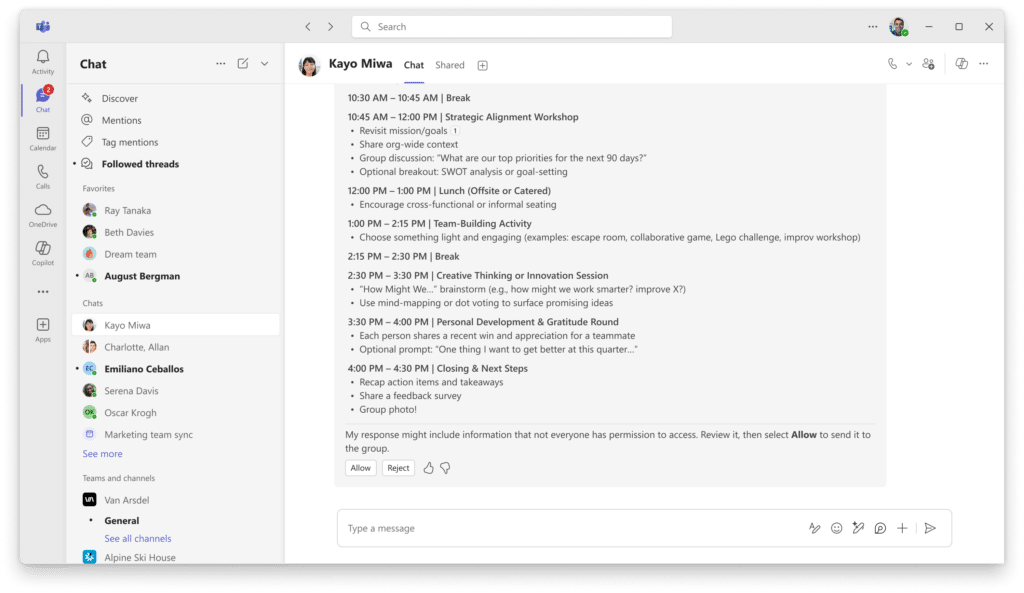
Copilot, like all AI services, can sometimes provide incorrect information so sure to use your judgement and double-check facts before making business decisions based on them.
If you’re worried about security, Copilot is built upon and complies with Microsoft’s comprehensive approach to security, compliance, and privacy. See Data, Privacy, and Security for Microsoft 365 Copilot to learn about the standards Copilot follows to protect your business data.
Some images above courtesy of Microsoft.