

Quick tip for folks who copy and paste a lot of varying data: Did you know that you can setup the Window Clipboard to maintain a history of the last 25 items you copied? This can be handy if you’re copying and pasting similar but not quite identical data over and over. Here’s how you do it.
Note: If you deal with a lot of confidential information and data – like passwords – we do not recommend turning this feature on, as you could potentially have information in there that would be easily accessible by somebody who can access your computer. It’s a minimal risk if you lock your machine properly, but one we have to throw out there.
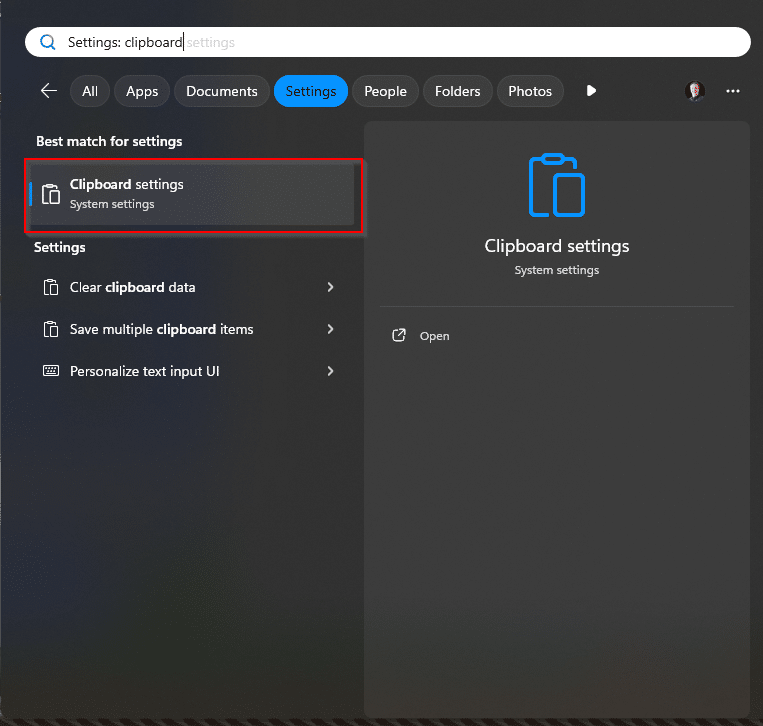
To turn on Clipboard History, go to the start menu and search for Clipboard (or go to Settings –> System –> Clipboard).
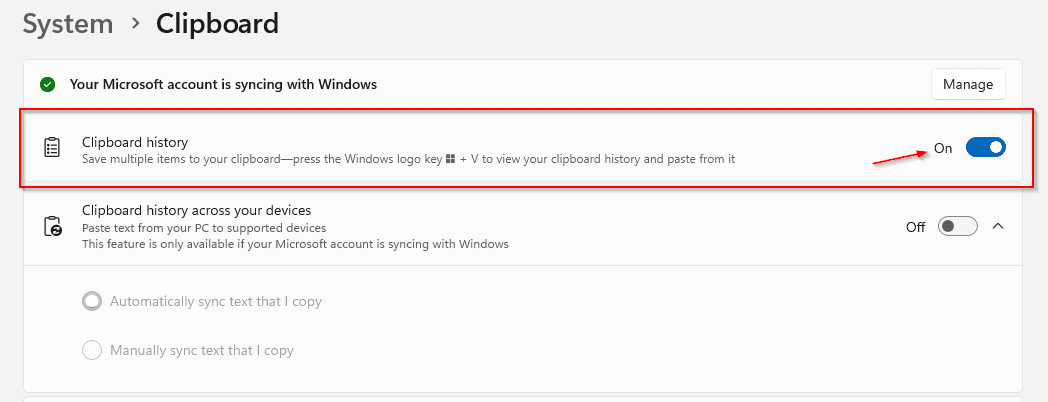
Click on the switch to enable “Clipboard History”:
Now, if you hit “Windows Key – V” (one of many great Windows Key shortcuts), you’ll now see the last items you copied:
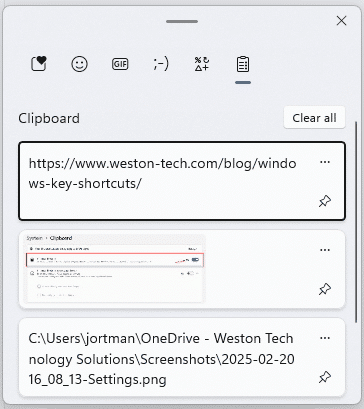
Click on one of them items to insert into where you’re working. You can also click on the push pin icon to permanently keep an item in there, or hit the three dot menu to remove an item from the list. The history keeps 25 items, and as you copy new items, the oldest one will drop off the list. There’s also a “Clear All” button on the top to clear things out completely.