

Presenting in a hybrid or remote environment comes with unique challenges. For presenters, catching a last-minute error in a slide deck usually means disrupting the meeting to reload and reshare a file. For attendees, encountering an unfamiliar acronym often means having to choose between interrupting the speaker or quietly losing the thread of the presentation.
To address these specific friction points, Microsoft has introduced two new features to PowerPoint Live: Refresh and Explain. These tools are engineered to keep both presenters and audiences aligned without breaking the flow of a meeting.
For Presenters: The “Refresh” Feature
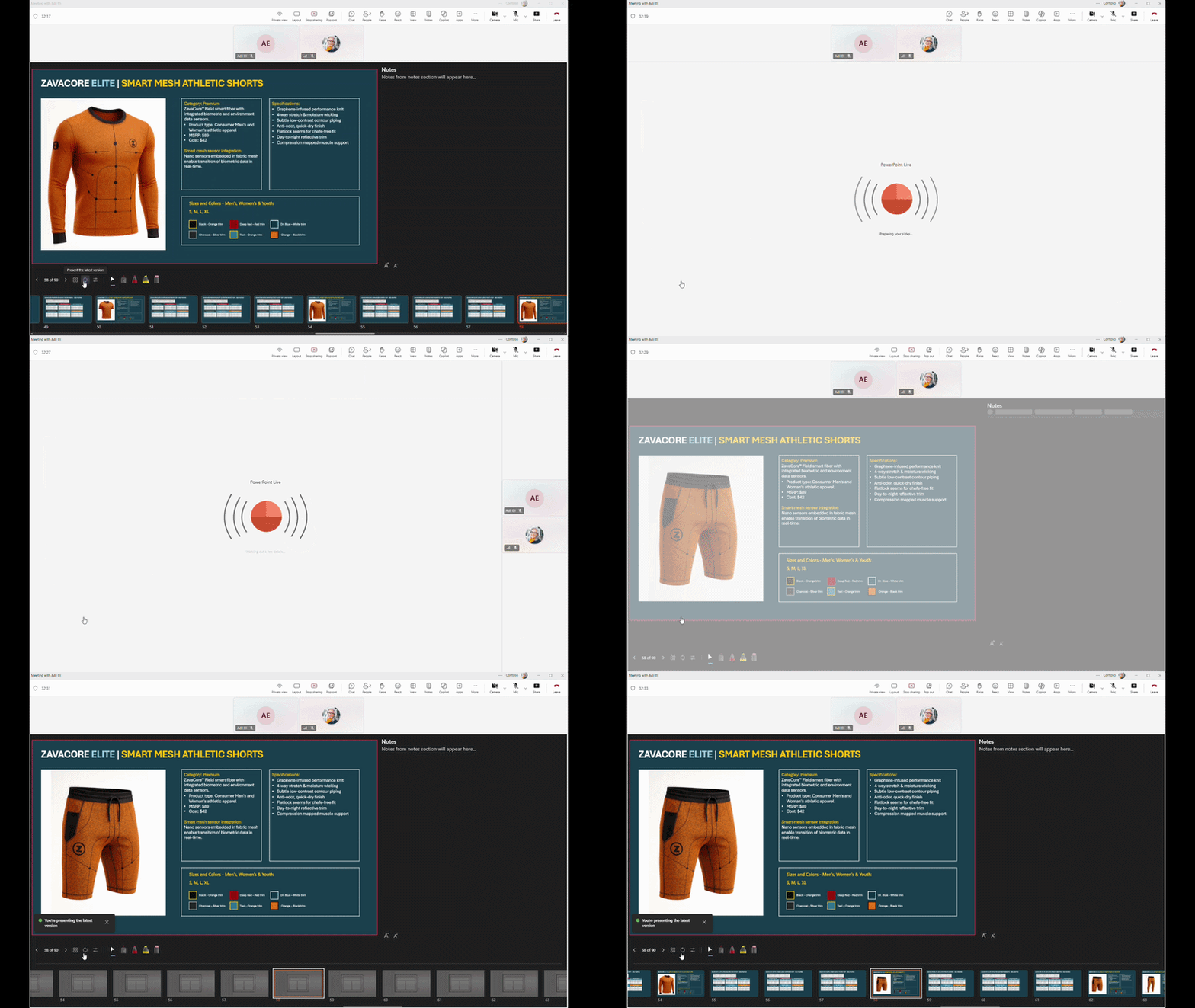
Imagine you are 15 minutes into a presentation when a colleague updates a crucial data point on an upcoming slide. Previously, showing the corrected slide meant stopping the session and losing momentum.
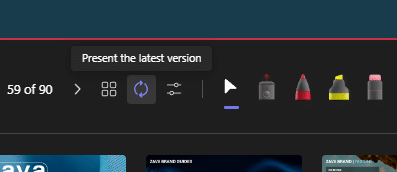
The Refresh feature eliminates this disruption. While presenting in a Teams meeting, you can simply click the Refresh button (indicated by two circular arrows). PowerPoint Live will instantly reload the latest saved version of your deck. You remain on your current slide, the meeting continues smoothly, and your audience will see the updated content when you advance. A subtle “You’re presenting the latest version” message in the bottom-left corner confirms the sync.
For Attendees: The “Explain” Feature
If you are an attendee looking at a highly technical slide, the Explain feature acts as your personal, silent assistant.
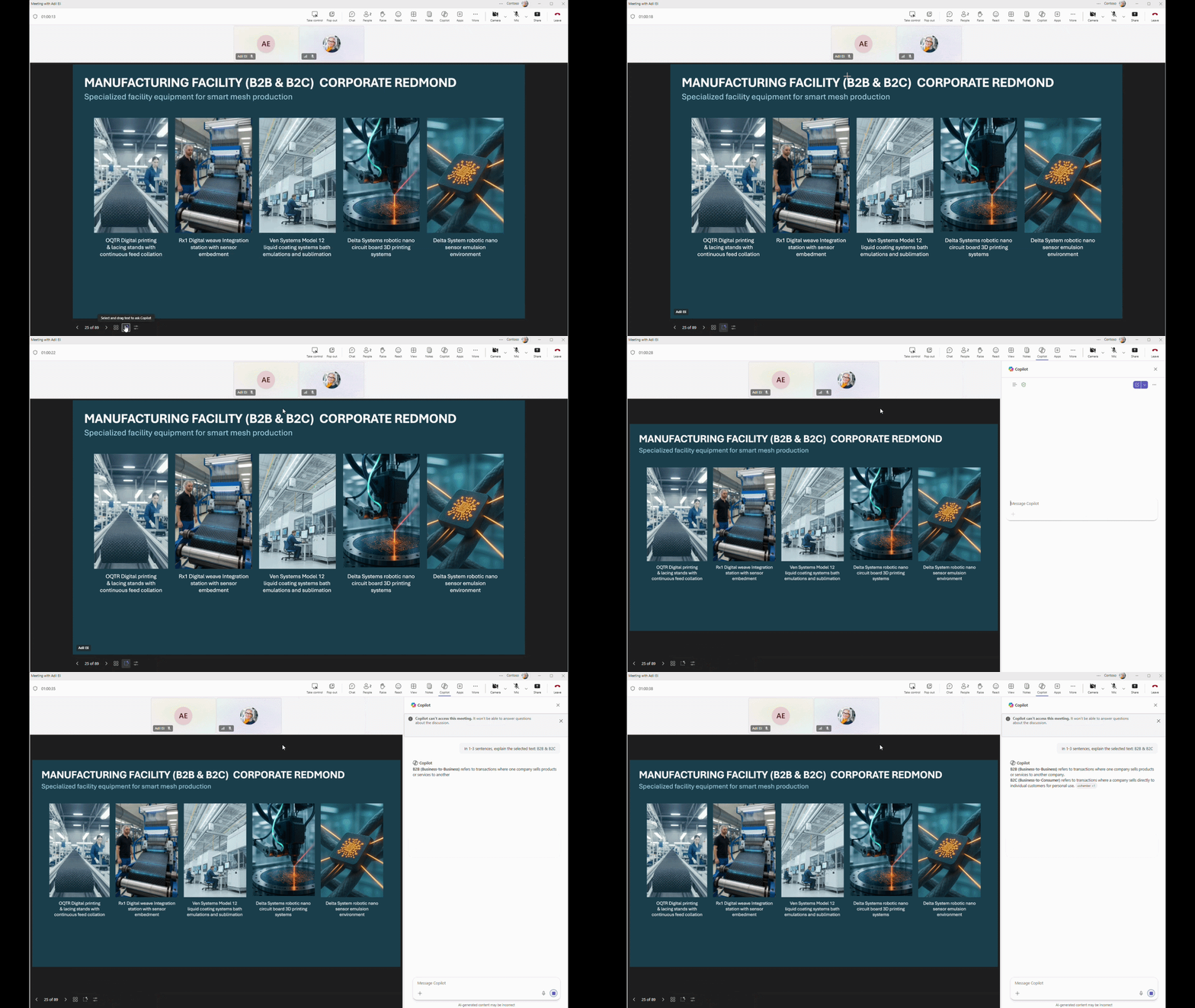
Instead of interrupting the presenter or missing the conversation while searching the web, you can click the “Select and drag text to ask Copilot” button (a dashed square with two sparkles). Highlight the confusing text and choose “Explain selected text.” The Copilot pane will immediately open with a contextual explanation of the highlighted term. (Note: Microsoft notes that this currently works best with text, rather than complex charts or graphs).

Availability and Requirements
There is no need to wait for a future rollout; both of these features are currently available to all PowerPoint for Windows and PowerPoint for Mac users.
- To use Refresh: You need a standard Microsoft 365 subscription.
- To use Explain: You need a Microsoft 365 subscription as well as a Microsoft 365 Copilot license.
By removing the most common presentation disruptions, Refresh and Explain ensure that PowerPoint Live sessions remain dynamic, professional, and highly accessible for everyone involved.
Images courtesy of Microsoft.