

For four decades, Microsoft Excel has operated on one fundamental, undeniable rule: one cell, one value. Whether you were tracking project owners or managing survey responses, cramming multiple items into a single cell usually resulted in a messy text string that was impossible to calculate or filter properly.
But that era is ending. Microsoft has announced a game-changing update for Excel: the ability to store multiple values in a single cell using Lists, Arrays, and Nested Arrays.
Here is a breakdown of what this new update entails, the functions it introduces, and when you can get your hands on it.
Say Hello to Lists and Arrays in Cells
Lists allow you to easily store multiple distinct items inside a single cell without losing the ability to filter or calculate them individually. To create a list, you simply go to Insert > List (or press Ctrl+J) and type your items separated by commas or semicolons. For instance, a cell could hold a list of assignees: “Carlos, Henrietta, Jacob.” You can now filter your dataset by any of those individual names, rather than searching for the entire exact text string.
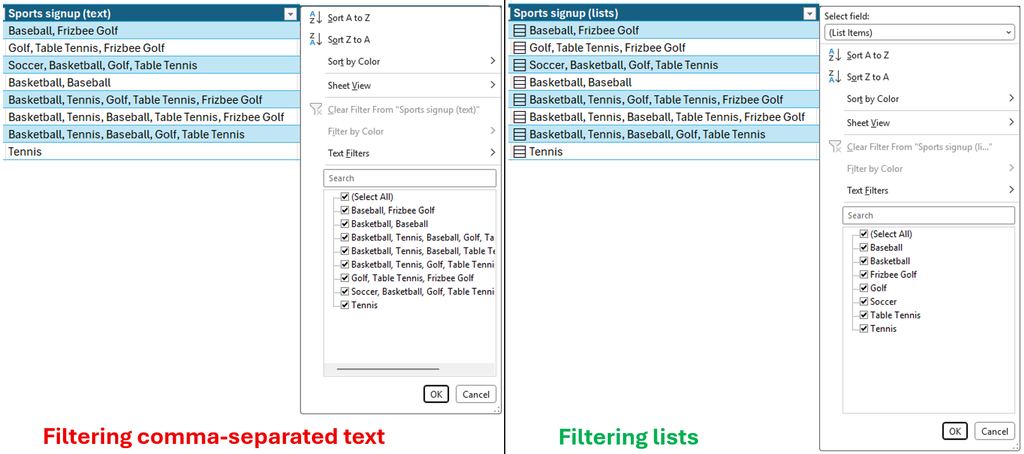
Beyond lists, Excel now natively supports Arrays in Cells. Previously, dynamic array formulas would always “spill” across adjacent cells in the grid. Now, if you want to contain a spilling formula or an array of values inside just one cell, you can wrap the formula body in an extra set of curly braces { }. For example, writing ={{1;2;3}} will keep the entire array neatly tucked into a single cell, rather than taking up three rows.
Nested Arrays and Four New Functions
If putting arrays in a single cell wasn’t enough, Excel now supports Nested Arrays. Nested arrays are arrays inside of other arrays (e.g., ={{1,2,3};{4,5,6}}). Before this update, formulas generating arrays of arrays would usually throw a #CALC! error or truncate your data. Now, they return the complete nested result.
To help you manipulate this new multi-dimensional data, Excel is introducing four new functions:
- FLATTEN(array, [pad_value], [levels]): Simplifies your data by removing layers of nesting, allowing you to spill individual nested results back out into the grid.
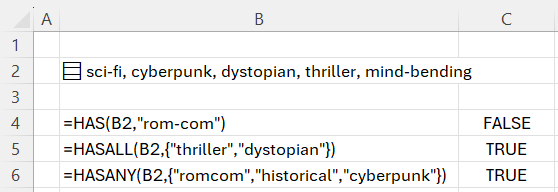
- HAS(array, value): Returns TRUE if a specific value exists anywhere in the array.
- HASANY(array, values): Returns TRUE if any of the specified values appear in the array.
- HASALL(array, values): Returns TRUE if all the specified values appear in the array.
Known Limitations
Because this feature is still in its preview phase, it comes with a few caveats. Microsoft has outlined some limitations that users should be aware of:
- PivotTables and Charts: PivotTables cannot currently read array values as source data, and charts will not expand an array into individual data points.
- Power Query: Power Query cannot load or emit columns containing array values.
- Data Validation & Formatting: You cannot use lists or arrays to populate data validation dropdown menus. Additionally, Conditional Formatting won’t inspect array contents unless you explicitly use a formula to do so.
- Find & Replace: This tool currently cannot find or replace individual items inside lists or arrays.
Availability and Compatibility
To process these advanced nested calculations, Microsoft is introducing Compatibility Version 3, which you’ll need to enable via Formula > Calculation Options.
Currently, these features are rolling out to Microsoft 365 Insiders in the Beta Channel. To test it out, you’ll need a minimum version of:
- Windows: Version 2610 (Build 20520.20000) or later
- Mac: Version 16.114 (Build 26092111) or later
By allowing cells to hold complex, multi-dimensional data, Excel is fundamentally changing how spreadsheets can be modeled, opening doors to highly compact, sophisticated workbook designs that were previously impossible.