

The various products in Microsoft Office suite (Word, Excel, Powerpoint, etc…) allow you to embed images and video file into your document. While you can extract those embedded files back out one at a time, you can actually extract them out all at once with a bit of work, thanks to a neat little feature of the Microsoft Office format. Here’s how you do it.
Modern Office file format (the ones with the “X” on their file extension – the older types are dangerous and should never be opened) use Microsoft’s Office Open XML format. This file format is an open standard to allow for other programs to read and write to the Microsoft formats.
The best part about the file formats is that they’re actually just ZIP files. ZIP files are a compressed file format that can be open natively with Windows Explorer or with programs like 7-Zip and can contain multiple files (including your embedded files).
So how do you do all this? Well first off, you need to change your file extension from .DOCX (or whatever format you’re using) to .ZIP. If you don’t see file extensions, in File Explorer under View, in the Show/hide group, select the File name extensions check box:
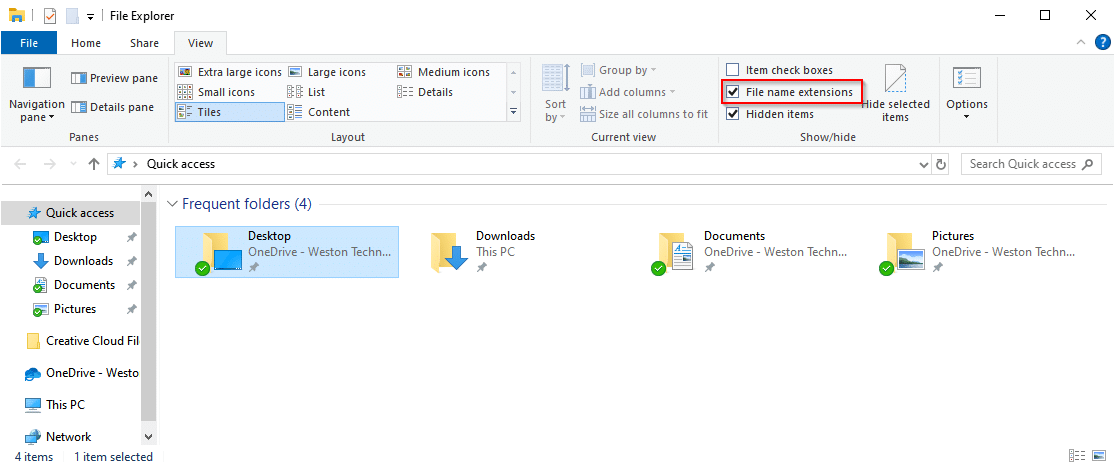
So after you do that, your file icon will change from an Office icon:

To the compressed file (this icon is from 7-zip but the standard Windows icon is similar):

Double click on the newly-renamed file to see its contents:
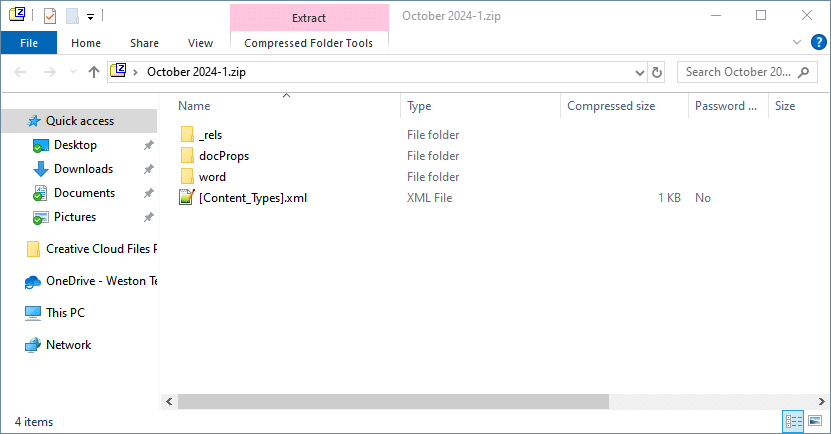
For Word documents, you’ll see a “word” folder. For PowerPoint, you’ll see a “ppt” folder. For Excel documents, you’ll see an “xl” folder. Click into that folder, and then you’ll see a “Media” folder. There you will see all the embedded images and other embedded files that you can just extract right out wherever you need.
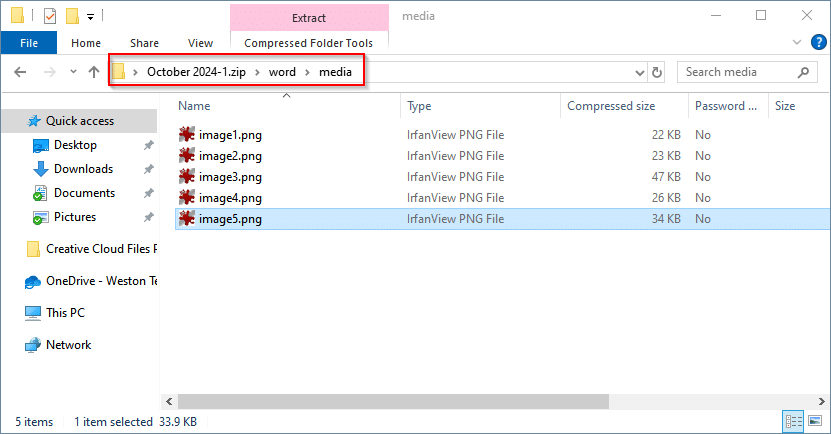
This should allow you to quickly and easily extract all the embedded media out of an Office document. Just make sure you rename your file back to the pervious file extension (.docx for Word, .xlsx for Excel, or .pptx for PowerPoint).