

If you need to bring data in from external sources in Excel, it was sometimes a bit overkill and not really intuitive to use the various import functionalities in Excel. However, if you do a lot of external text document importing into Excel (text or CSV files, for example), two new functions in Excel could make your life a lot easier: IMPORTTEXT and IMPORTCSV.
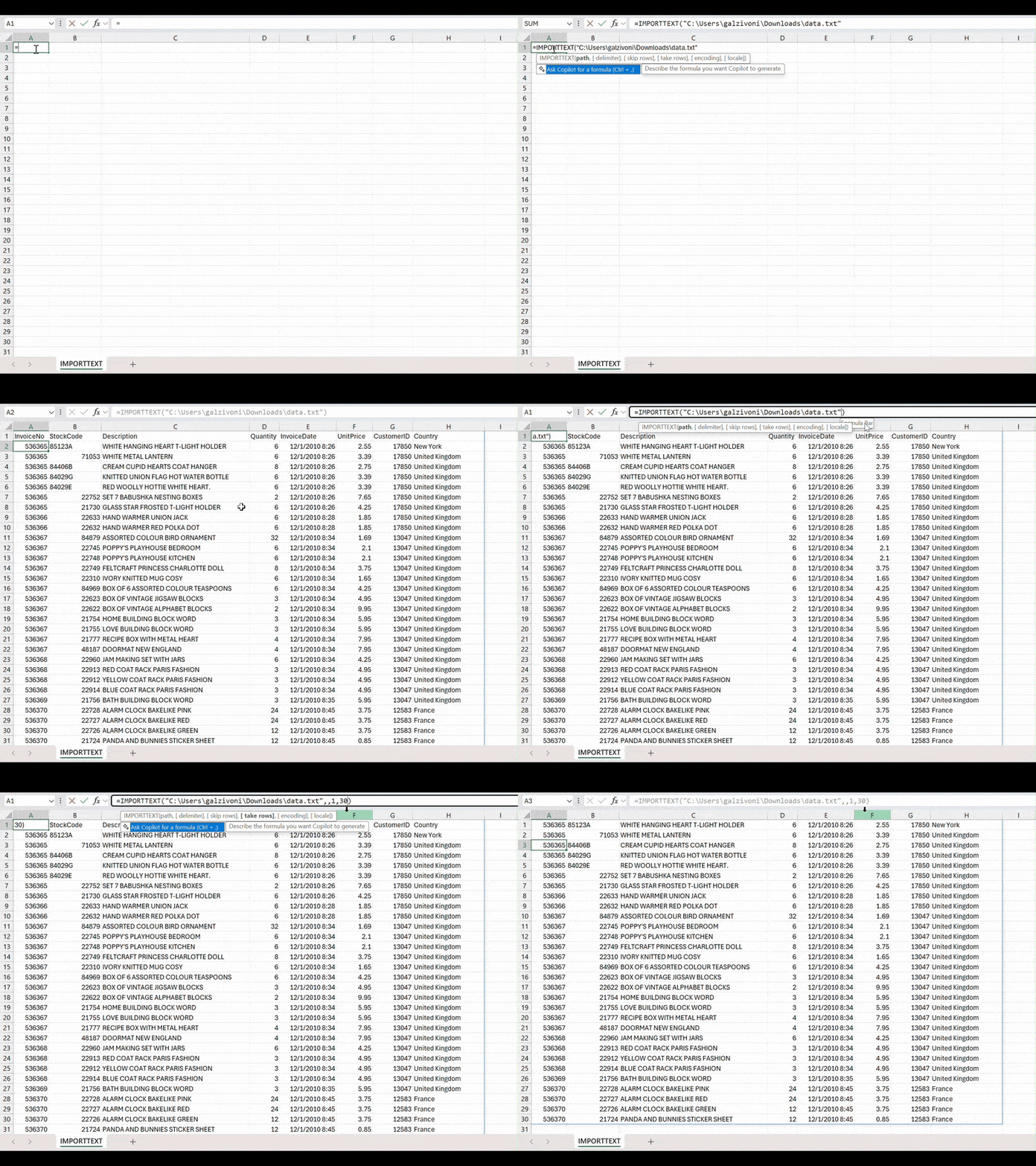
IMPORTTEXT is the primary new function here and can be used for importing CSV and TXT files with any delimiter. IMPORTCSV works just like IMPORTTEXT but is basically a shorthand function for IMPORTTEXT designed just for comma-separated text documents so it doesn’t need as much work to get it functioning properly. To get IMPORTEXT working properly:
- In Excel, click the cell where you want your imported data to show up
- Type =IMPORTTEXT to add the function
- Enter the location of your file (a local path or a URL) and optionally add parameters such as the delimiter by which to parse the data, rows to skip or take, encoding, or locale.
- Press Enter, and watch the data from your .txt, .csv, or .tsv file imported into the grid.
- If necessary, you can use Data > Refresh All to refresh the data.
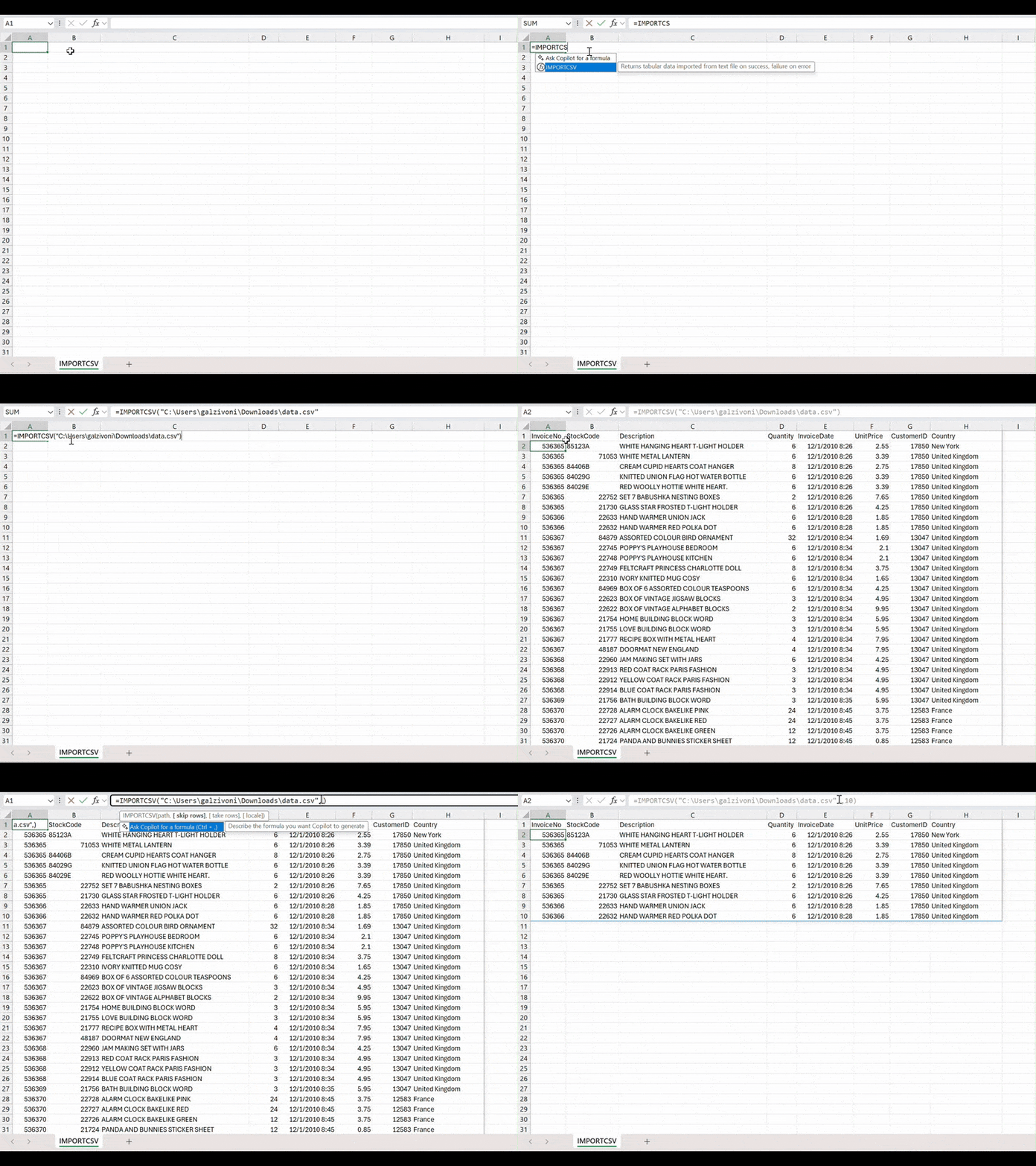
IMPORTCSV works just like IMPORTTEXT, but it assumes you’re importing a CSV file so you’ll have fewer parameters to set in the function. If you’re always going to be using CSV files in your imports, you can just use this function to save yourself a bit of work.
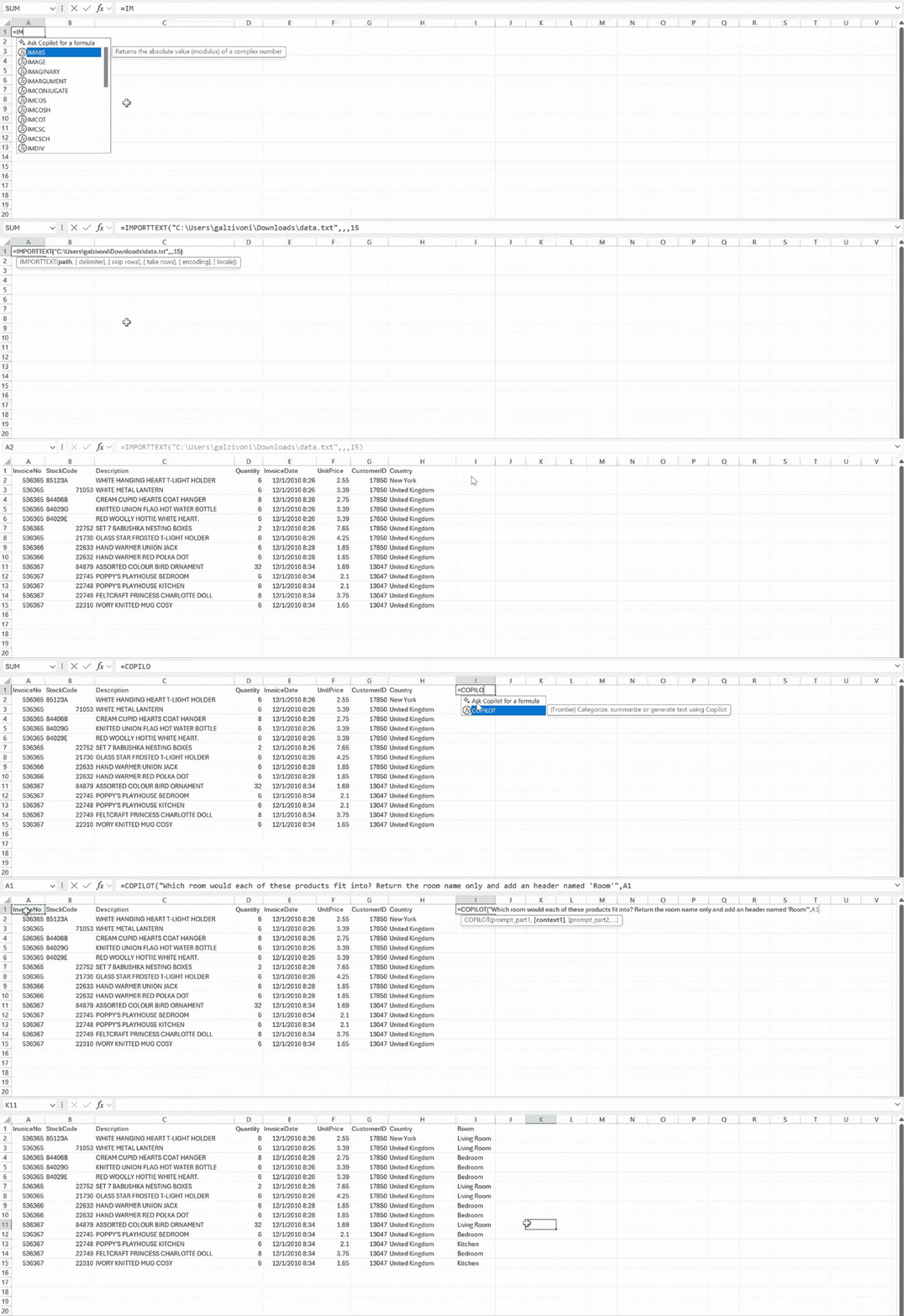
You can also use these functions combined with the new COPILOT function to ask question about the imported data.
For more information about these Import Functions, see documentation on Microsoft’s site for IMPORTTEXT and IMPORTCSV.
You won’t see this function immediately in Excel, as it’s still in Beta, but you should see it if you’re running Windows Version 2502 (Build 18604.20002) and have the latest version of Excel as part of the Microsoft 365 Insider program.
Images courtesy Microsoft.