

Have you ever heard of metadata? Generally speaking, it’s the data you don’t see. It’ll be information like the GPS coordinates of on the picture you just took on your phone, for example. Metadata is extremely useful in the right contexts, but can be an operational risk if used wrong. Microsoft Office files all have metadata that is extremely valuable to your company and its file structure (especially if those documents live in SharePoint). But sometimes that data shouldn’t be shared externally. Here’s how you can remove that data from your Microsoft Office documents.
First off, what kind of metadata is there in Office documents? There are loads of things that are on the back end of the document that you can’t see but could be there, including, but not limited to:
- Title
- Subject
- Author
- Company
- Category
- Keywords
- Comments
- Creation Date
- Last Modified Date
- Last Modified By
- Revision Number
- Total Editing Time
- Template Name
- File Statistics
There could also be custom properties based on business units, client, document owners, SharePoint libraries, etc… . This is all stuff you want on your documents internally as it will help categorize and make them easier to find and understand ownership. However, you might not want to share that stuff externally.
So how do you remove what you can before sharing? While it’s impossible to get rid of everything, the built-in Document Inspector can help find and remove that data. Here’s how you use it.
First off, save and work with a copy of your original document. The metadata is useful in the right circumstances, and it’s not easy to get it back after removing, so working on a copy of the original is best practice.
Whether in Excel, Word, or Powerpoint, the process is the same: On the File tab, select Info and then under the Check for Issues select Inspect Document.
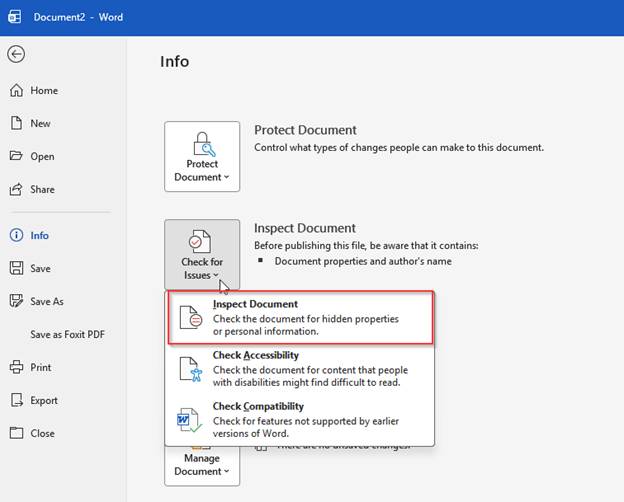
You’ll then see the document inspector window pop-up:
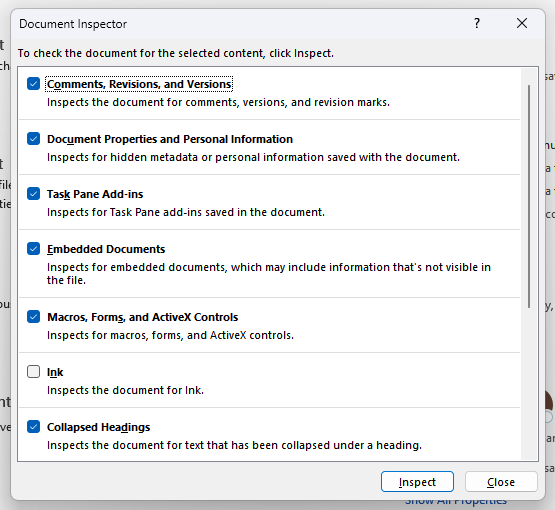
Unless you have a touch screen and use the Inking features in Office, you can leave the default settings alone and hit Inspect. One you hit that button, it will show you the hidden data and give you options for removal:
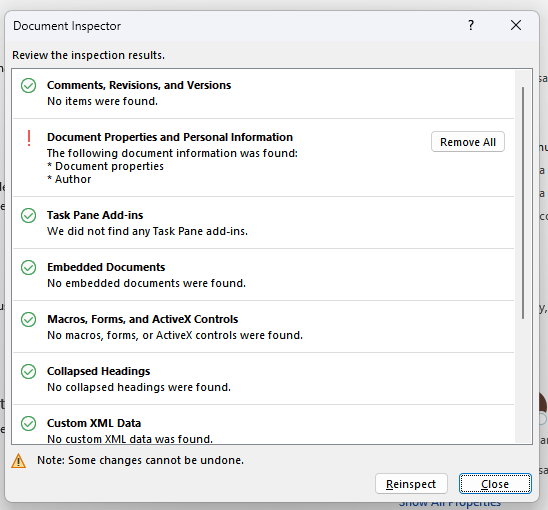
You can then scroll down the list and follow the removal options to clean up your document before sending it out to the world.
For a full list of what the Document Inspector can (and cannot) remove, see this Microsoft support article.