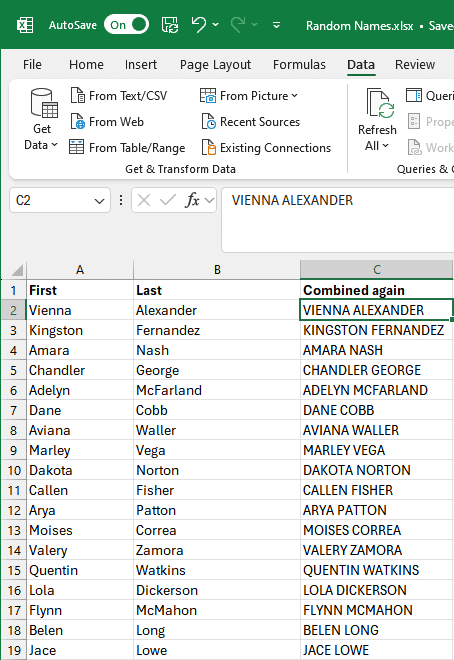
This feature has been around for quite a while, but a surprising amount of folks are not using it. If you are inputting a lot of data in Excel based on existing data on the spreadsheet (like to change the format/style of existing data for example), FlashFill can be a huge time saver for you.
Say you’re splitting up and/or combining a list of first and last names. For example, say you have a list of names like so:
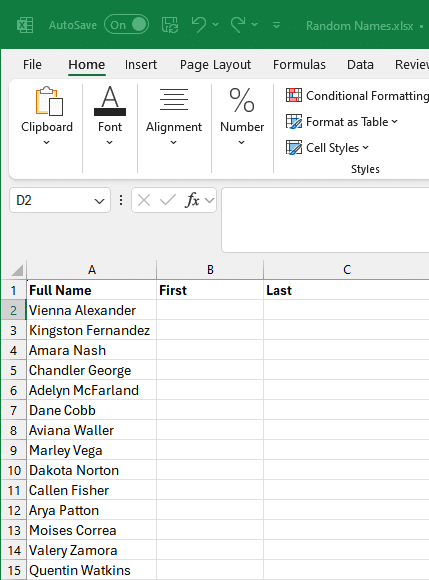
And you want them to be split into separate columns. Yes, technically you could use text to columns for that, but this is actually easier.
Start typing the first name into fields. By the second line, Excel will realize what you’re doing and should prompt you to fill up the rest of the column automatically:
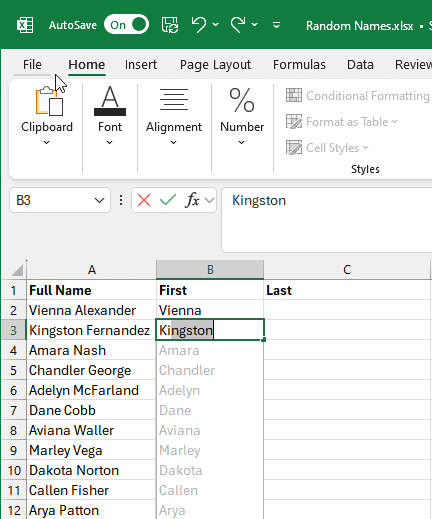
Hit Enter, and it will fill out the rest of the column.
If Flash Fill doesn’t generate the preview, it might not be turned on. To turn Flash Fill on, go to Tools > Options > Advanced > Editing Options > check the Automatically Flash Fill box.
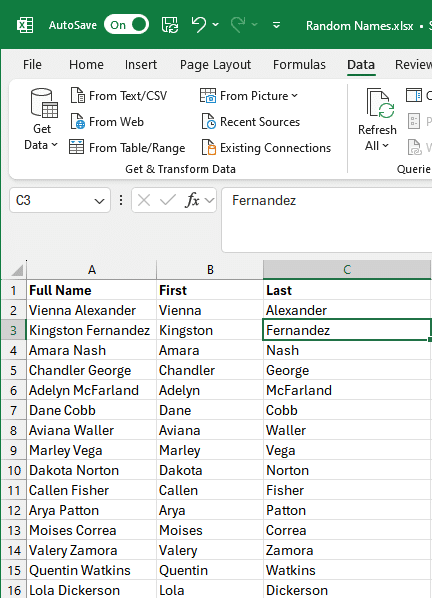
You can also manually trigger a flash fill. In our example, just type in one name into the last name column, and go to the “Data” menu and select “Flash Fill” (or hit “Ctrl-E on your keyboard):
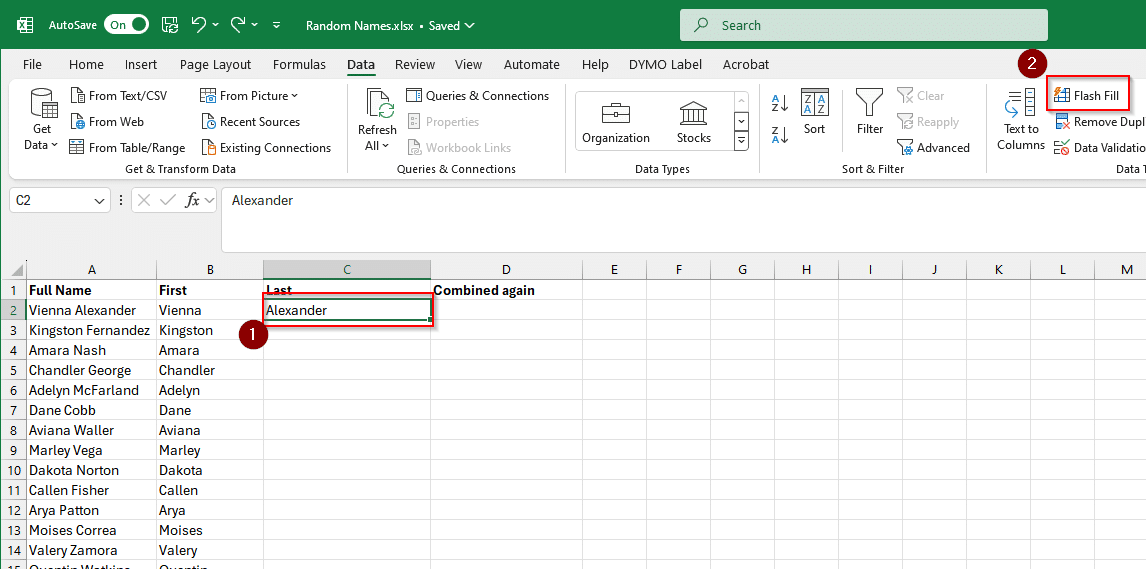
The rest of your column should now be filled in:
You can also use it to combine and even change the format of the data. In this case, we’re going to combine our first and last name and make them all caps in a new column. Basically format one cell like you want, flash fill it, and it’ll come out like so: