

 Editor’s note: We used AI to create some of this article content mostly because the guy who creates all the blog content was offline a lot this last month. This was then edited because some of the verbiage didn’t make sense. AI is cool, but always check its work.
Microsoft Excel continues to evolve, and with its increasingly sophisticated features comes the need for performance optimization, especially in large or complex workbooks. The “Check Performance” tool in Excel for Microsoft 365 addresses this by helping users identify and correct elements that may be slowing down their workbooks.
What the “Check Performance” Feature Does: The “Check Performance” tool is designed to analyze a workbook and identify potential issues that could be impacting performance. Specifically, it scans for and highlights common culprits such as:
- Excessive conditional formatting rules: Particularly when multiple overlapping or duplicate rules exist, which can strain workbook speed.
- Unnecessary styles: Custom or duplicated cell styles that can accumulate over time and bloat file size.
- Large numbers of hidden or unused cells: These often appear in workbooks with copied-and-pasted ranges or data that extends far beyond the area actually in use.
- Metadata: Removes metadata from the document that may have built up through various copy/paste operations.
After analyzing the workbook, Excel offers users the option to remove or consolidate these problem areas with a single click, streamlining both the file size and processing speed. It’s important to note that while the tool simplifies formatting and styles, it does not affect cell data or formulas, which will preserve the workbook’s functional integrity.
Potential Gotchas: While generally safe to use, there are a few considerations to keep in mind:
- Loss of custom formatting: If you rely heavily on custom styles or intricate conditional formatting, the tool may remove or simplify them, possibly altering the visual layout.
- No undo after cleanup: Once changes are applied, they cannot be reversed using the Undo function. It is highly recommended to save a copy of your workbook before running the tool.
- Limited scope: It doesn’t address formula inefficiencies (e.g., volatile functions or array formulas) or external links that might also slow down a workbook.
The “Check Performance” feature is available only in Excel for Microsoft 365 and is located under Review > Check Performance. It is not available in perpetual license versions like Excel 2016, 2019, or Excel 2021.
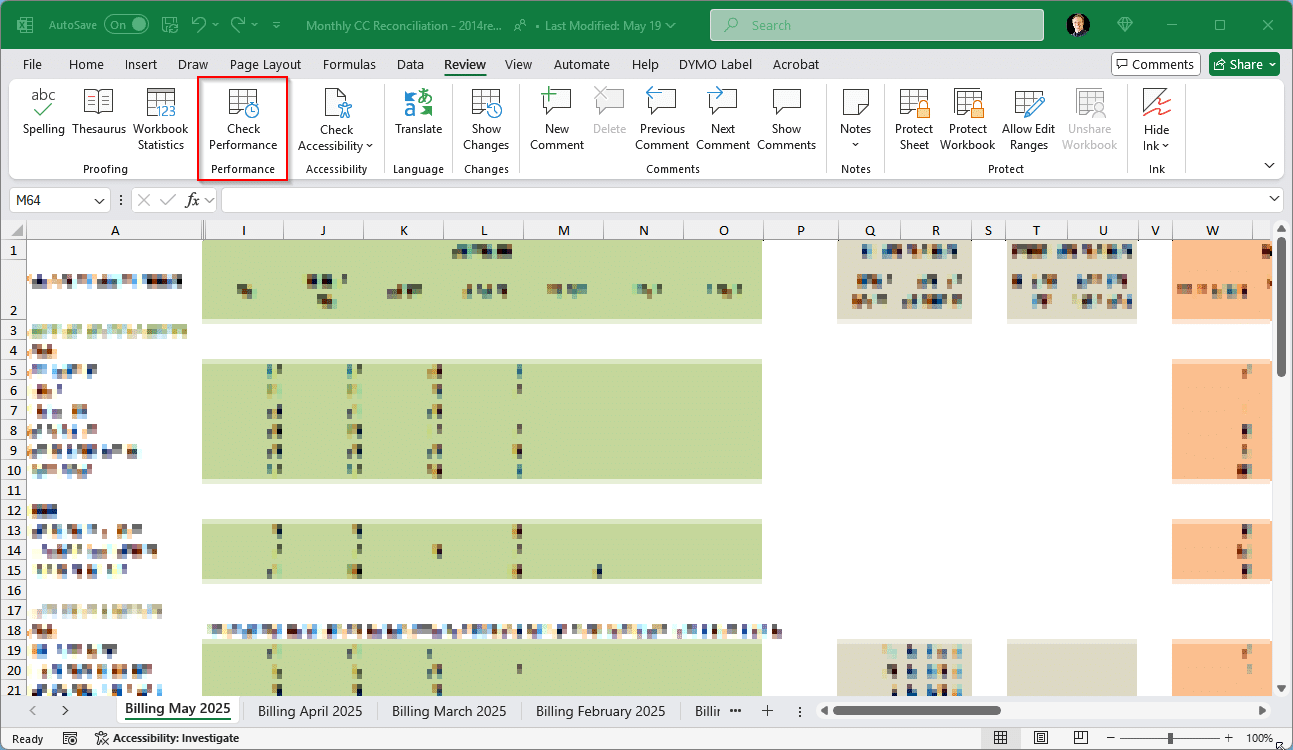
For users of Excel in Microsoft 365, the “Check Performance” feature is a valuable tool for maintaining optimal workbook speed and size. While it doesn’t catch every performance issue, it offers an easy and effective way to tidy up workbooks that may have become sluggish over time. Always remember to back up your file before using it, especially if your workbook relies on intricate formatting.