

 It’s always a busy yet wonderful time when you’re planning to take a vacation. All the last-minute work you have to get done before you take off and there are always a lot of last-minute things that come up. You also need to let folks who try to contact you that you’re gone. You probably already know how to set an Out of Office reply in Outlook when you’re planning on taking a vacation, and you probably know how to get your voicemail greeting, but did you know you can setup an out of office reply in Teams? Here’s how you do it.
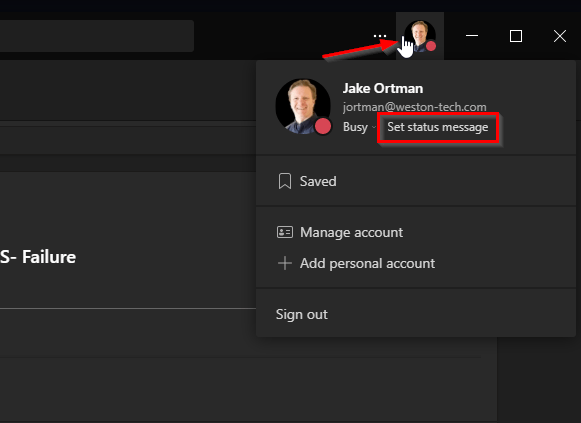
First, click on your user profile picture/button in the upper right corner of Teams, and click on “Set Status Message” (I’m using the dark theme of Teams, so it might be slightly different if you’re using the default):
First option there is type your auto-response message. You can @ mention/tag folks at your company so folks know who to contact in your absence.
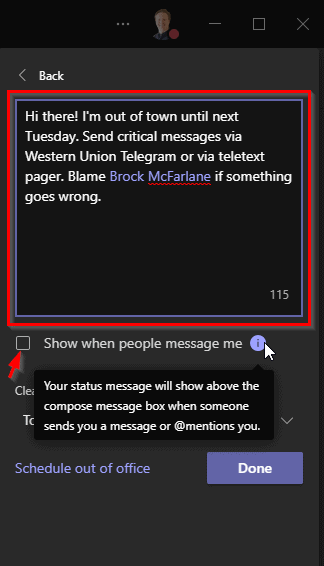
Those folks you @ tag will get notified that you’re tagging them in your out of office reply:

There is an option to check the box to “Show when people message me”. If checked, when someone is about to send you a direct message or tags you in a chat, your out-of-office message will appear before they send their message. That toggle will help keep folks from unnecessarily messaging you while you’re out and having you come back to a pile of extra message.
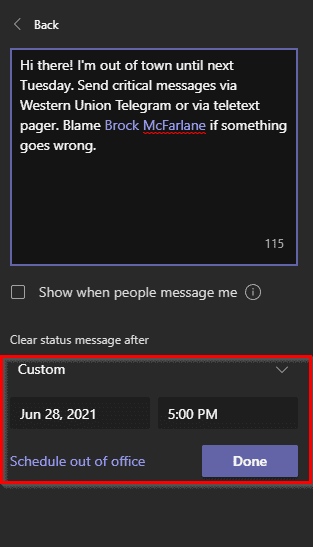
You can also set an expiration date on the chat so that the status clears itself after a certain date and time:
If you’re like us, you’ll probably put something in your Teams out of office that’s different than your Outlook out of office. We primarily use Outlook for external conversation and Teams for internal conversations, so the auto-replies serve different purposes. So this gives you the option to customize for both!