

In recent months, a surge of malicious calendar invites has caught Outlook users (and cybersecurity experts) by surprise. These seemingly innocuous invitations often slip past traditional email security tools, landing right in your calendar and sometimes even issuing pop-up reminders. While most people are wary of suspicious email links, few expect that their calendar could become a gateway for phishing scams. So how do you stop these?
First off, if you haven’t seen these, what the heck are we talking about? Basically, scammers are pushing calendar entries, and sometimes meeting requests, directly to your calendar in Outlook (they’re also doing it to Google Workplace environments and you can read more about those here). They’ll show up on your calendar or pop-up as a meeting request for you to join, generally with a malicious link in hopes of getting you to give up user credentials or get access to your system.
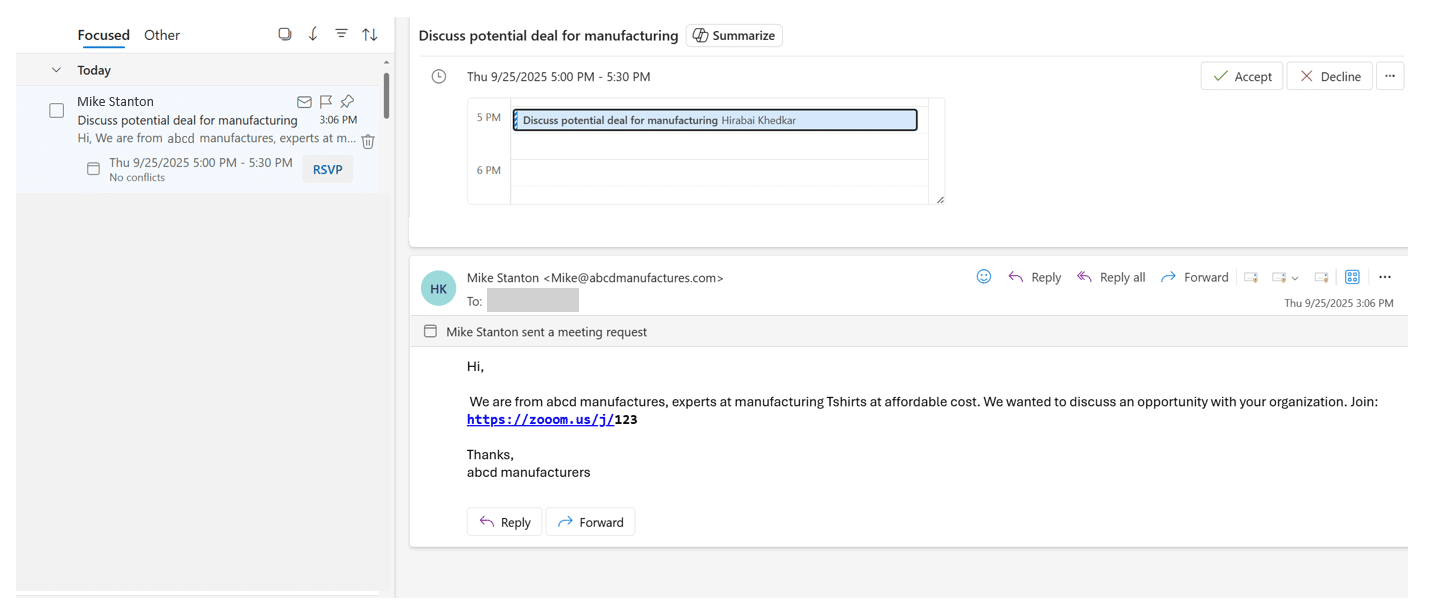
So, why are these malicious invites so dangerous? First, they exploit the trust users place in their calendars. A calendar invite feels less threatening than an email, leading many to click on links or attachments without the usual caution. Attackers take advantage by embedding harmful URLs or attachments inside the event description, or by tricking users into joining fake meetings where further social engineering can occur. In some cases, simply accepting or declining a rogue invite can confirm your address is active, making you a more attractive target for future attacks.
Not only that, but these calendar invites can clutter your schedule with spam appointments, making it harder to spot legitimate events and wasting valuable time.
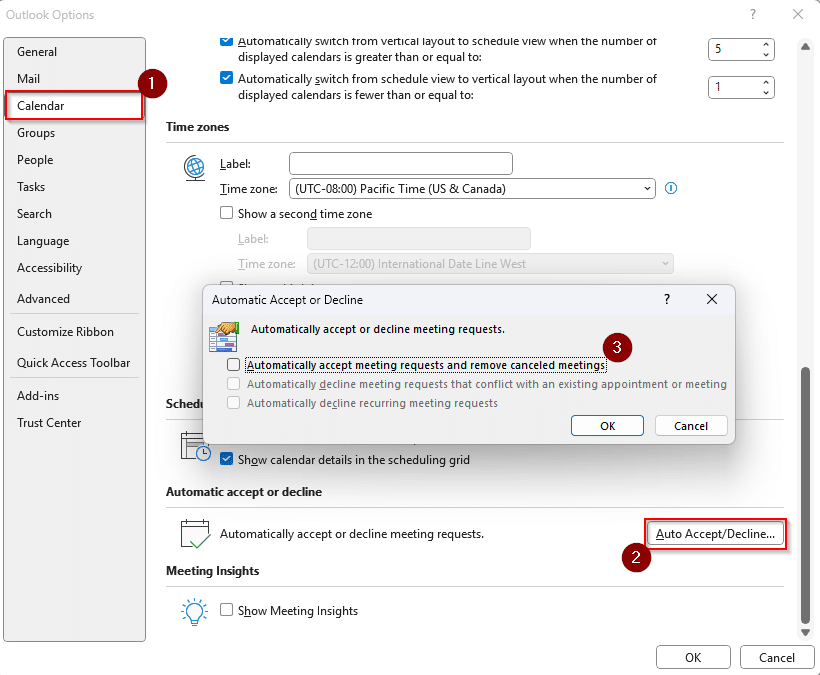
Fortunately, Outlook provides several ways to defend against this growing threat. The first step is to adjust your calendar settings to limit who can send you invitations. In Outlook, go to File > Options > Calendar > Automatically accept or decline, and turn off automatic event creation from emails if it’s not already disabled.
You can also turn off the “Automatically process meeting requests” setting in your email settings in Outlook. To do that, go back to Options > Mail > Tracking and uncheck the “Automatically Process Meeting Requests and Responses”.
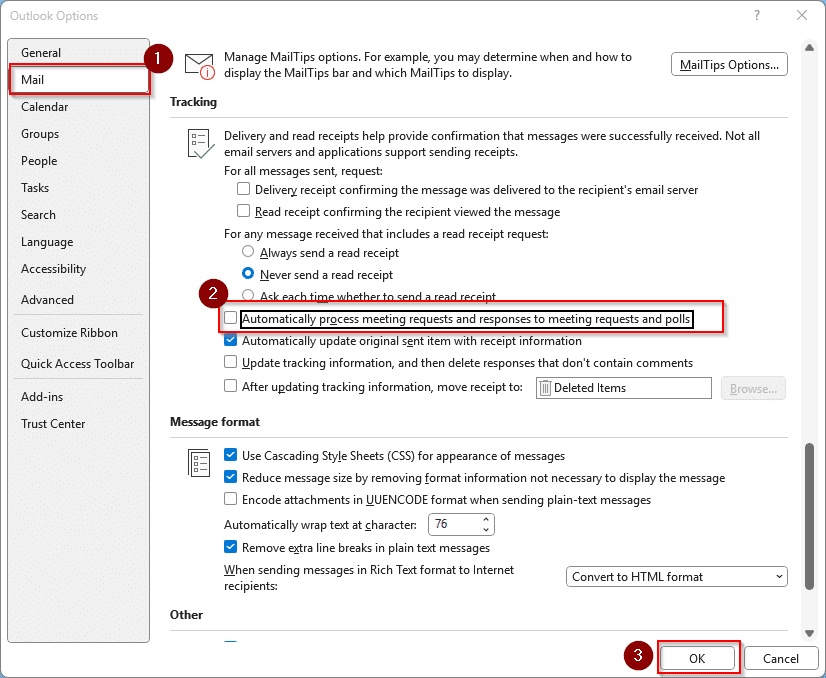
This reduces the chance of fake events appearing without your approval.
If you’re using New Outlook, there is no way (at this time) to prevent meeting invites from being automatically added to your calendar. As it stands right now, users can only limit certain types of “Events from email” (such as travel reservations), not actual meeting invites. While New Outlook is getting better, it’s not quite there yet. So the recommendation is just to delete the calendar invite and move on. Do not interact with it in any way.
Like suspicious emails, be wary of unsolicited calendar invites, especially those from unknown senders or with suspicious links. If you receive an unfamiliar invitation, do not click any links or download attachments; instead, delete the invite and consider reporting it as spam or phishing.