

Have you ever needed to really dig into what really makes a complicated Excel Spreadsheet tick? Have you needed to figure out all the relationships between various cells, workbooks, and worksheets? What if want to clean up excess cell formatting? How about comparing two Excel spreadsheets? While Copilot can do a lot of this and is one of the handiest add-ons to Excel (more on that in future articles), there’s actually a built-in feature that will allow to do all the above. Read on to learn more about the Spreadsheeet Inquire add-on for Excel.
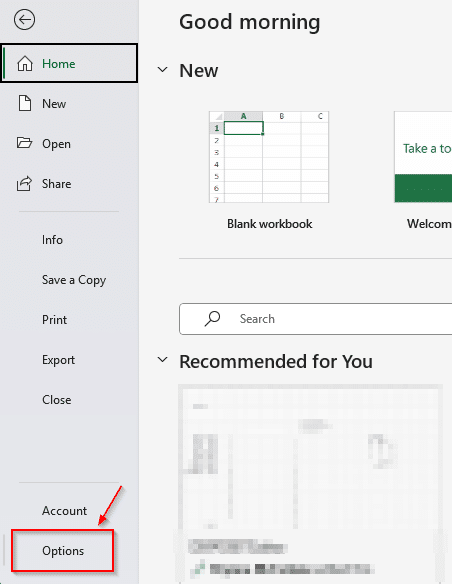
First, to use Inquire, you need to turn it on (as it’s not enabled by default). To do that, first go to the “Options” menu under the file menu:
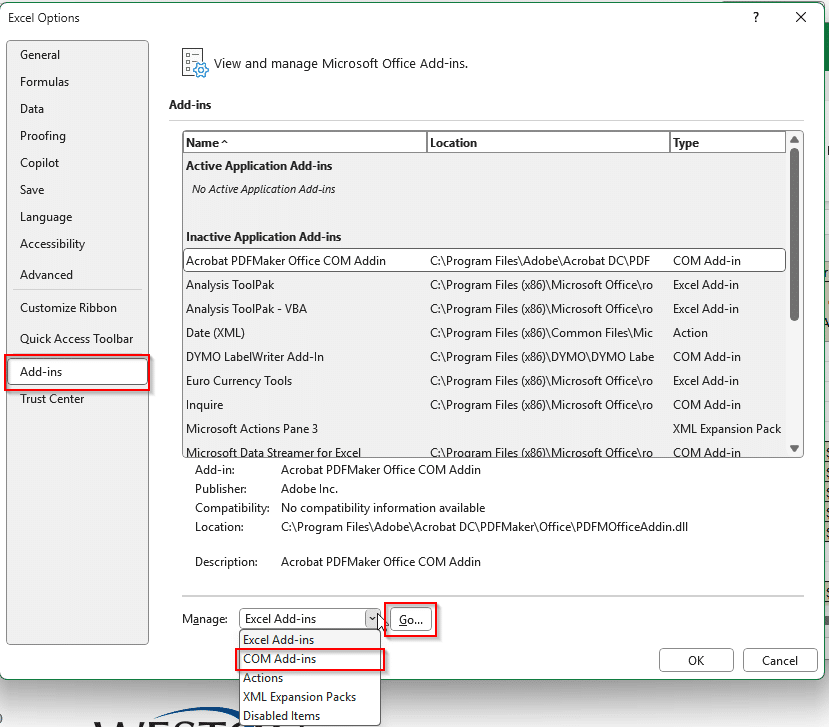
Then open up the “Add-ins” area and select “COM Add-ins”:
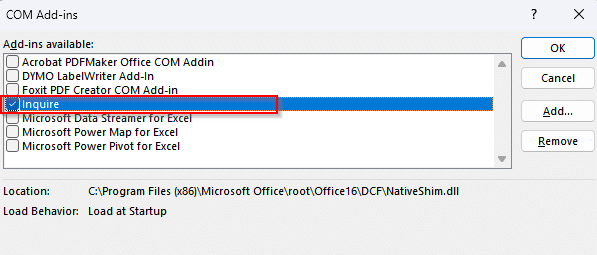
Once you’re in there, select the “Inquire” add-on and then hit “OK.”
You may have to restart Excel, but you’ll now see a new tab on the ribbon menu in Excel: The Inquire tab:
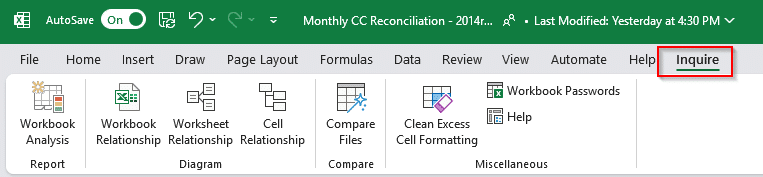
There you will see a handful of functions and tools to analyze your spreadsheet:
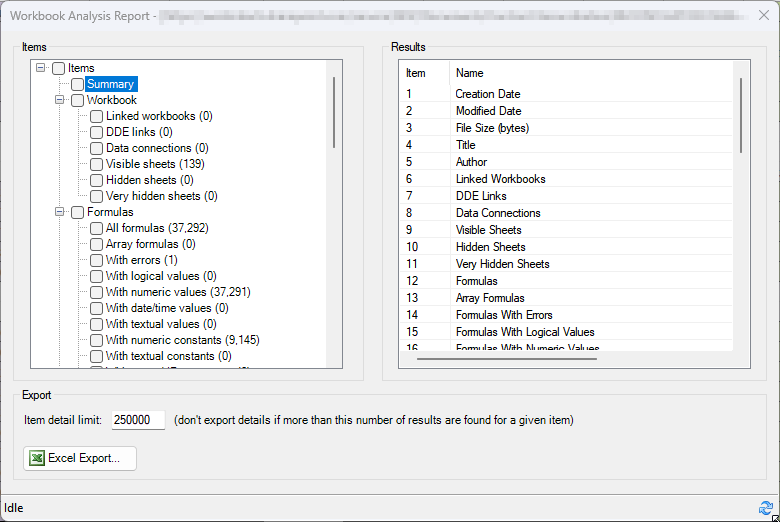
Workbook Analysis: This tool will generate a comprehensive report and analysis of the logic and structure of an Excel document, showing links, connections, formulas, statistics and so much more. If you have a massive spreadsheet, this can take a bit to generate the report. But if you’re trying to dig into how the spreadsheet is built and to find quirks and errors, this is the first place to start. You can export this to a separate Excel spreadsheet if you want to dig into it that way. See more about this tool from Microsoft.
Workbook Relationship: If this document is relying on data from another workbook, this tool shows you links to those other workbooks and data sources (including Access Databases, XML files, and HTML pages, if used). You can hover over a file to see the link’s location and its last modified date. See more from Microsoft about this tool.
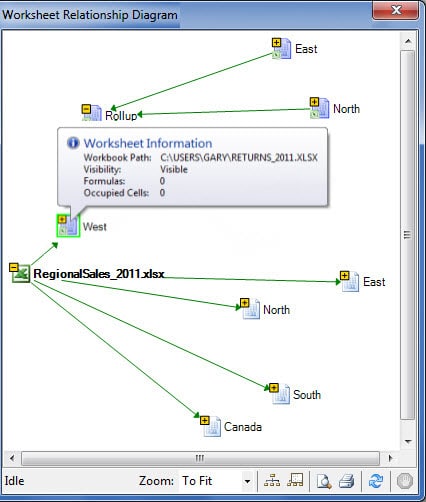
Worksheet Relationship: Similar to the above function, this shows all the relationships between worksheets in the same Workbook, allowing you to see how various worksheets within an Excel document are linked. See more here.
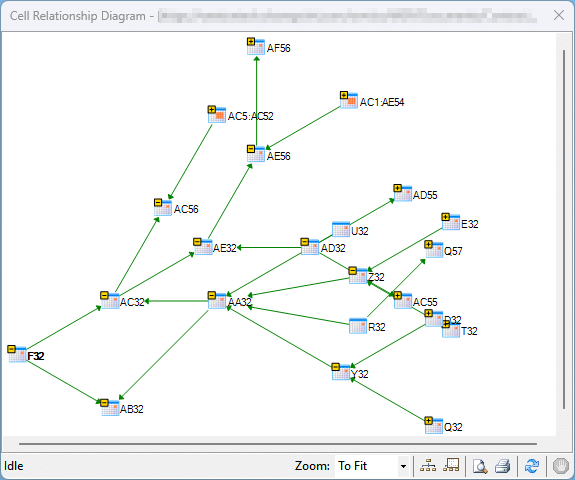
Cell Relationship: Similar to both of the above, this allows you to go in-depth into how various cells in your document link to each other, what formulas reference what cells, and you can highlight or click on a cell to get more details or to go to the cell directly. Microsoft digs into it further here.
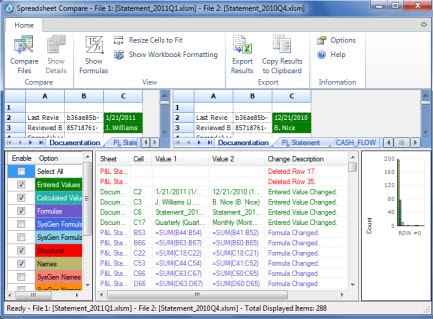
Compare Files: This is where the Inquire tool really shines. If you have two spreadsheets that you need to compare their differences, open them both up and then click on the Compare Files tool. This will allow you to see, cell by cell, the differences between two workbooks. You’ll get color-coded results showing what’s changed, what’s missing, etc… . Read more about the feature on Microsoft’s site.
Clean Up Excess Cell Formatting: You know how you can add formatting or conditional rules to an entire row or column? That’s all fine and dandy until you realize you’re potentially adding formatting and rules to over a million cells that likely don’t need it. The Clean Excess Cell Formatting option works by removing cells from the worksheet that are beyond the last cell that isn’t blank. For example, if you apply conditional formatting to an entire row, but your data goes out only to column X, the tool may remove the conditional formatting from columns beyond column X. This, combined with locating and resetting the last cell in a worksheet, will help trim down filesize and make things work smoother for your computer. More details from Microsoft here.
Workbook Passwords: If you’re using the tools in the Inquire tab to work with workbooks that are password protected, this tool will allow you to save the password so you don’t have to type it each time the document it opened for analysis. Just click on the tool and go. See more here.
Some of the images above are courtesy of Microsoft.