

If your mouse stops working and you don’t have a backup or spare, you might think you’re sunk. While we’ve published all sorts of articles about keyboard shortcuts, there are just some things you can’t do without a mouse. But what if you could control your mouse with your keyboard, to get you by until you can get a proper mouse? Windows has built-in functionality for that. Mouse Keys is an accessibility feature for Windows that lets you control your mouse with your keyboard and can help you out in a pinch. Here’s how you turn it on.
Press and hold the Left Alt, Left Shift, and Num Lock keys simultaneously. You’ll get a pop-up that looks like this:
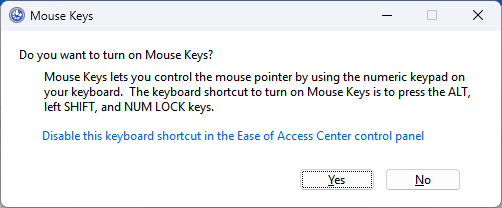
Click Yes to turn on the feature. If you can’t click yes with your mouse because it’s dead, you can press the “Enter” key and it should click “Yes” for you. That same shortcut will disable Mouse Keys as well.
If the keyboard shortcut has been disabled for some reason, you can access mouse keys through the Accessibility settings of Windows 11. Press the Windows key, type “accessibility mouse settings” into the field, and press Enter. From here, use the Tab key to navigate to the switch, then hit the Spacebar to activate it. You can use the Alt + F4 keyboard shortcut to close the settings window.
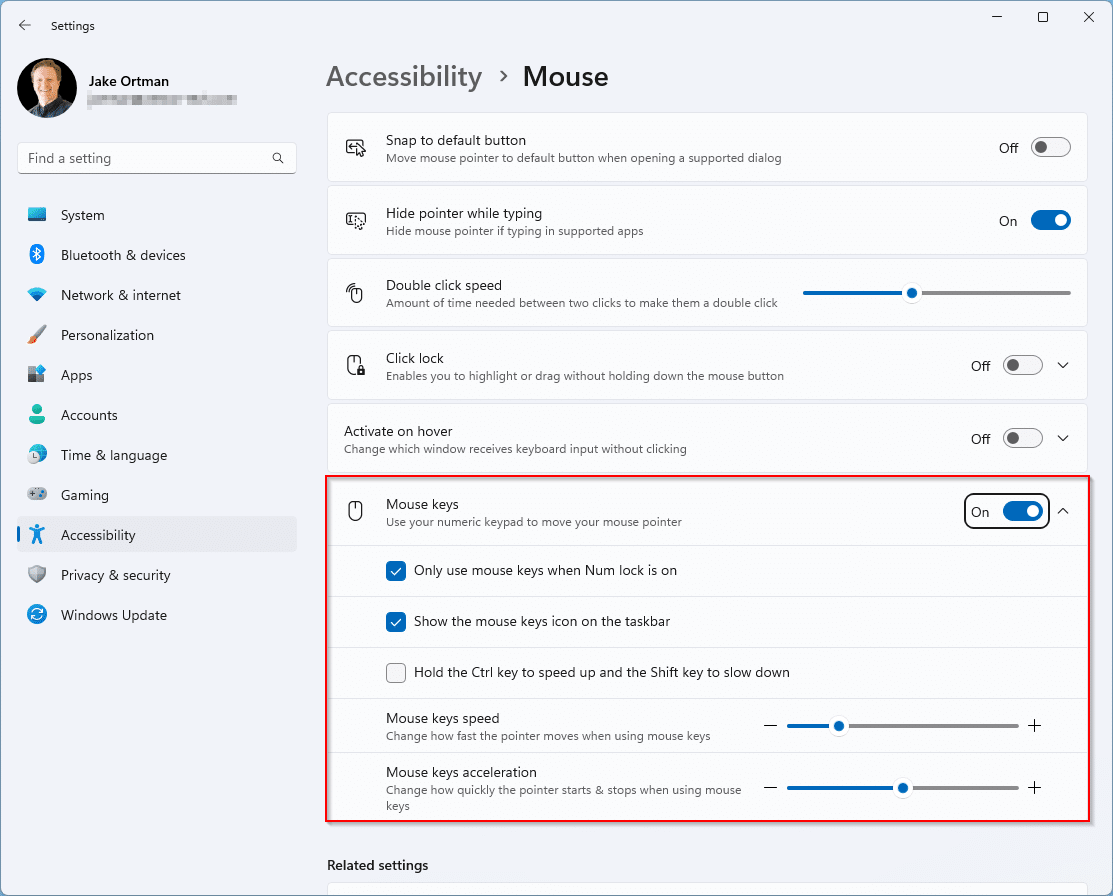
Now when you press the Num Lock key on your keyboard, you’ll hear a beeping sound, which tells you that it’s enabled.
You’ll control the cursor by using the number keys on your 10-key – 8 is up, 2 is down, 6 is right, 1 is down and to the left, etc… . Each key moves the mouse cursor one pixel in the given direction so you’ll likely need to hold the key down to get it to move a decent distance.
If you need to click on something, you first need to click on which button you’re going to click (left, both, or right) by clicking the forward slash (/), asterix (*), or minus sign (-), respectively. Generally, you’ll just want to click on the forward slash as it’ll stay selected until you need something else (and that’ll be primarily what you need anyway). Then click on the 5 key on your number pad, and that corresponds with a click.
You can even drag an item by pointing to it, pressing zero (0) and then pointing to the location where you want to move it and press the decimal point (.).
The one problem with this is that this will not work if you don’t have a keyboard with a num lock (which generally requires a 10 key). Some laptop keyboards have the ability to turn on Num Lock that will map a set of keys on your keyboard to numbers like a number pad, but you’ll have to check with your keyboard’s documentation for that.
When you’re all done and have a functional mouse again, you can then just press Num Lock again to turn off the mouse keys. If you want to get your 10 key back to normal usage, just follow the settings at the top of this article as that will also disable Mouse Keys.