

 Ever stumbled across a hidden gem in Microsoft Excel that makes your spreadsheets way more interactive and easier to manage? The Camera tool is one of those sneaky features that most users don’t know about, but once you try it, you’ll wonder how you lived without it. It’s not flashy, and you won’t find it splashed across any toolbars by default, but its usefulness is undeniable for anyone who works with large or complex sheets.
So, what exactly is the Excel Camera tool? Think of it as a virtual snapshot feature for your spreadsheet. Instead of copying cells or using screenshots, you can create a live “picture” of any selected range of cells, charts, or tables. This snapshot updates in real-time, so if you change the numbers or data in your original range, the Camera image updates automatically. It’s super handy when you want to keep key information visible while you scroll through other parts of your workbook or when you need to build dashboards that pull together info from multiple sheets.
Why would you want this feature? Imagine you’re juggling a massive budgeting sheet or a sales tracker. You need to see summary stats, but the details are buried deep across several sheets and sections. Instead of flipping back and forth, you can use the Camera tool to display those summaries right where you need them—making it easier to track changes, avoid mistakes, and keep your focus on what matters. It’s also a lifesaver when you’re prepping for meetings or collaborating with others; you can showcase live data snippets without worrying about them getting out of sync.
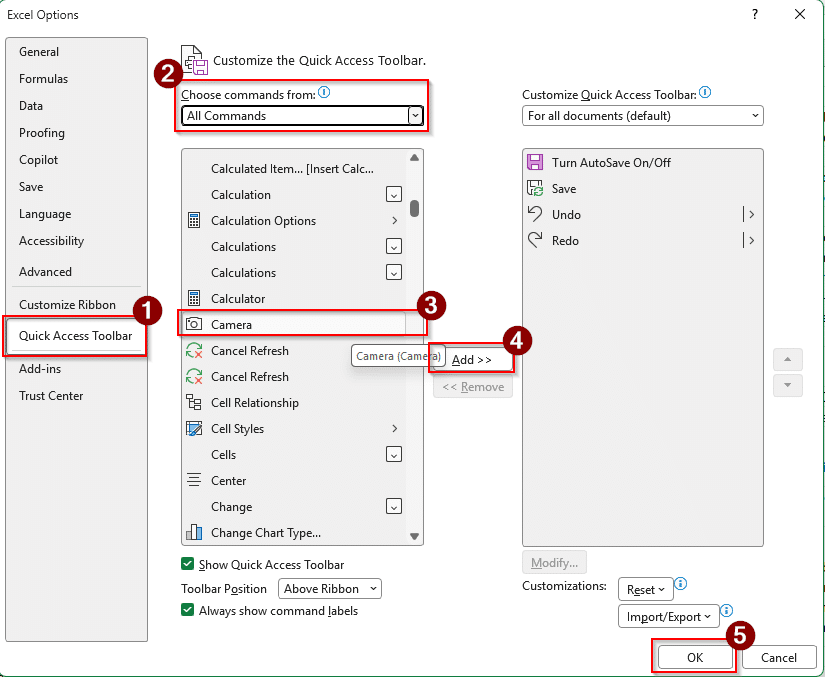
Getting the Camera tool set up is pretty straightforward, but since it’s not enabled by default, you’ll need to add it to your toolbar. First, right-click anywhere on the ribbon and choose “Customize the Ribbon” or “Quick Access Toolbar.” In the list of commands, search for “Camera” (sometimes you’ll need to look under “All Commands”). Select it, add it to your chosen toolbar, and hit OK. We’re going to add it to our Quick Access Toolbar (the bar by the AutoSave toggle on the upper left corner of your Excel window).
Once the Camera tool is available on your menu bar, using it is simple. Start by selecting the range of cells, chart, or table you want to capture. Click the Camera button, and your cursor will change to a crosshair—now just click anywhere in your workbook to paste the live image. You can resize or move this snapshot as needed, and it will automatically reflect changes made to the original data.
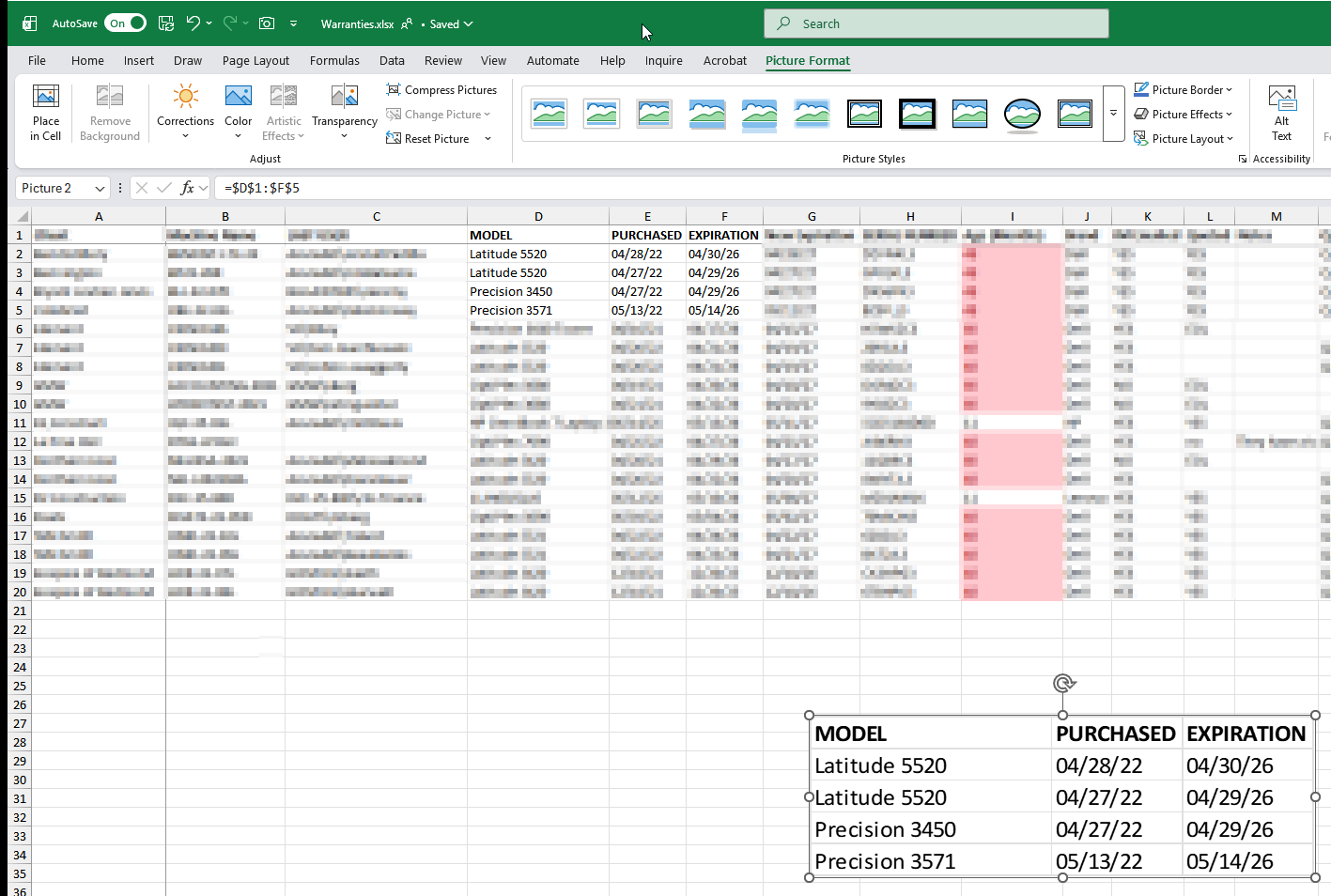
So how can this feature be used? One favorite use is creating a dashboard that pulls together charts from different sheets into a single, tidy overview. You select your chart, hit the Camera, and paste the live image wherever you want. It’s also great for monitoring KPIs or critical formulas: just snap a picture of the cells that matter, and paste them onto your summary sheet. If you’re tracking inventory, you can keep your current totals visible while updating individual items elsewhere. Teachers and students use it to keep assignment rubrics front and center while entering grades or feedback. Really, wherever you need a live “window” into another part of your workbook, the Camera tool fits the bill.
The feature has been around in Excel for quite some time, and why Microsoft has buried it away is unknown. Yes, we know there are multitudes of ways to display content from other cells and sheets in one place, this is one of the simplest and keeps the formatting in-tact, which is something some of those other features can’t say.