

If you’ve ever found yourself juggling multiple apps or browser windows, you know how tricky it can be to keep everything organized. Enter Windows 11’s Smart (or Snap) Windows feature, a simple tool designed to help you make the most of your screen space and multitask like a pro.
With Snap Windows, you can quickly arrange windows side-by-side, compare documents, watch a video while working, or keep an eye on your email – all without constantly resizing or moving windows around. It’s especially handy if you have a larger monitor or use multiple screens, but even laptop users will notice the difference.
How to Enable Snap Windows: Turning on Snap Windows is quick and easy. Here’s how:
- Click the Start menu and select Settings.
- Head to System and then Multitasking.
- Look for the Snap windows option and make sure it’s toggled On.
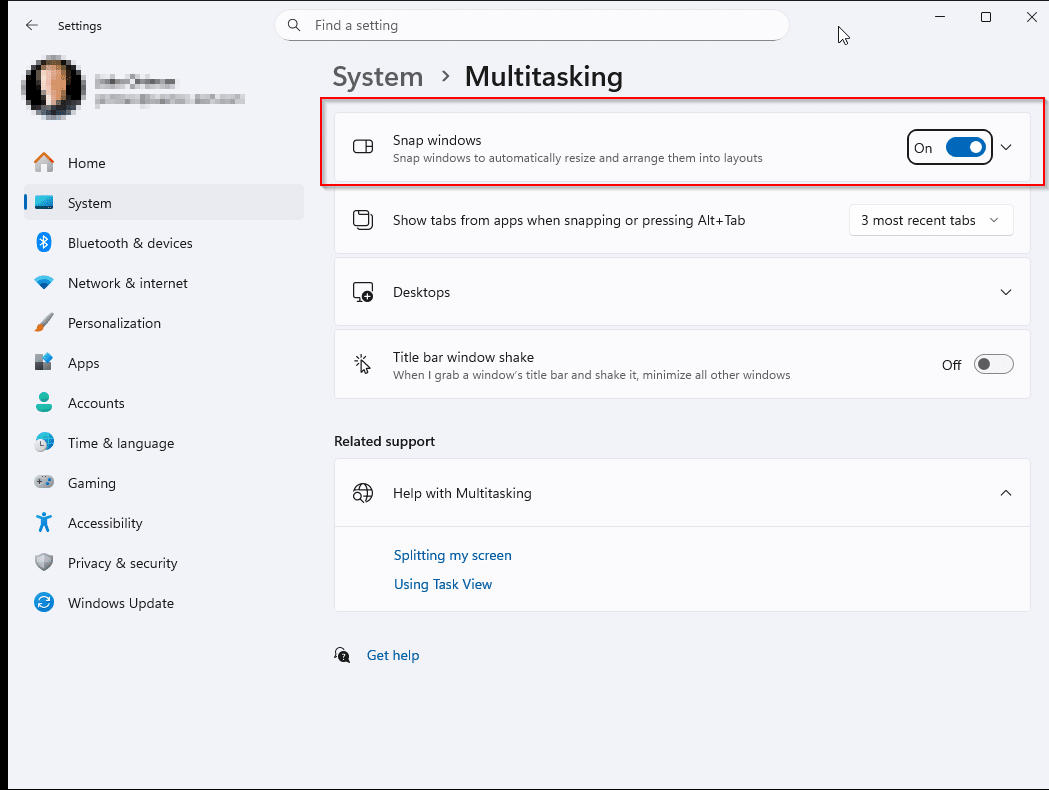
Once enabled, just drag any window to the edge or corner of your screen, and you’ll see a transparent outline appear, showing where the window will snap. Release the mouse and watch it snap into place.
You can also hover over the maximize button on a window to see snap layout options, making it easy to choose how you want your windows arranged.
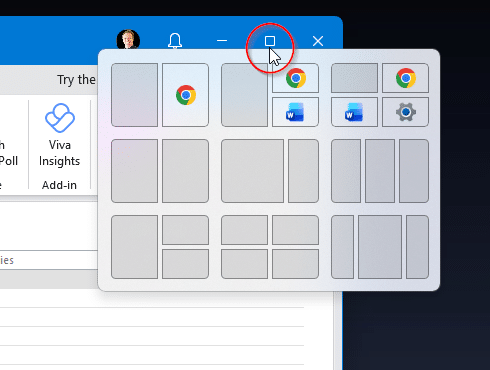
For keyboard fans, try using Win + Arrow keys to quickly snap windows left, right, or into corners (we’re big fans of Windows Key shortcuts). If you have multiple apps open, Windows will even suggest which ones to fill the remaining space. Play around and find a layout that works best for your workflow.
FancyZones with Microsoft Powertoys: The free Powertoys suite includes another tool that is like Snap Windows on steroids: FancyZones. FancyZones lets you create custom window layouts beyond the standard Snap options. Want three columns, a big window with two small ones, or your own unique arrangement? FancyZones can handle it. It’s especially useful for power users, coders, or anyone who needs a very specific window setup. Just download Powertoys, enable FancyZones and enjoy!