

If you need to give a PowerPoint presentation, you want to have all the information in front of you as possible to make your life easier and less nerve-wracking. By default, watching a slide show in PowerPoint will show you just the slide show itself. But if you have multiple monitors (or a laptop connected to a projector), PowerPoint Presenter View will help you present in your best light.
What is Presenter View? It’s a view that gives you the ability to easily see what you want to see as a presenter, but also share what you want with the audience. With multiple monitors or a project/laptop combo, you can have Presenter View on your laptop while showing the slide show to the audience.
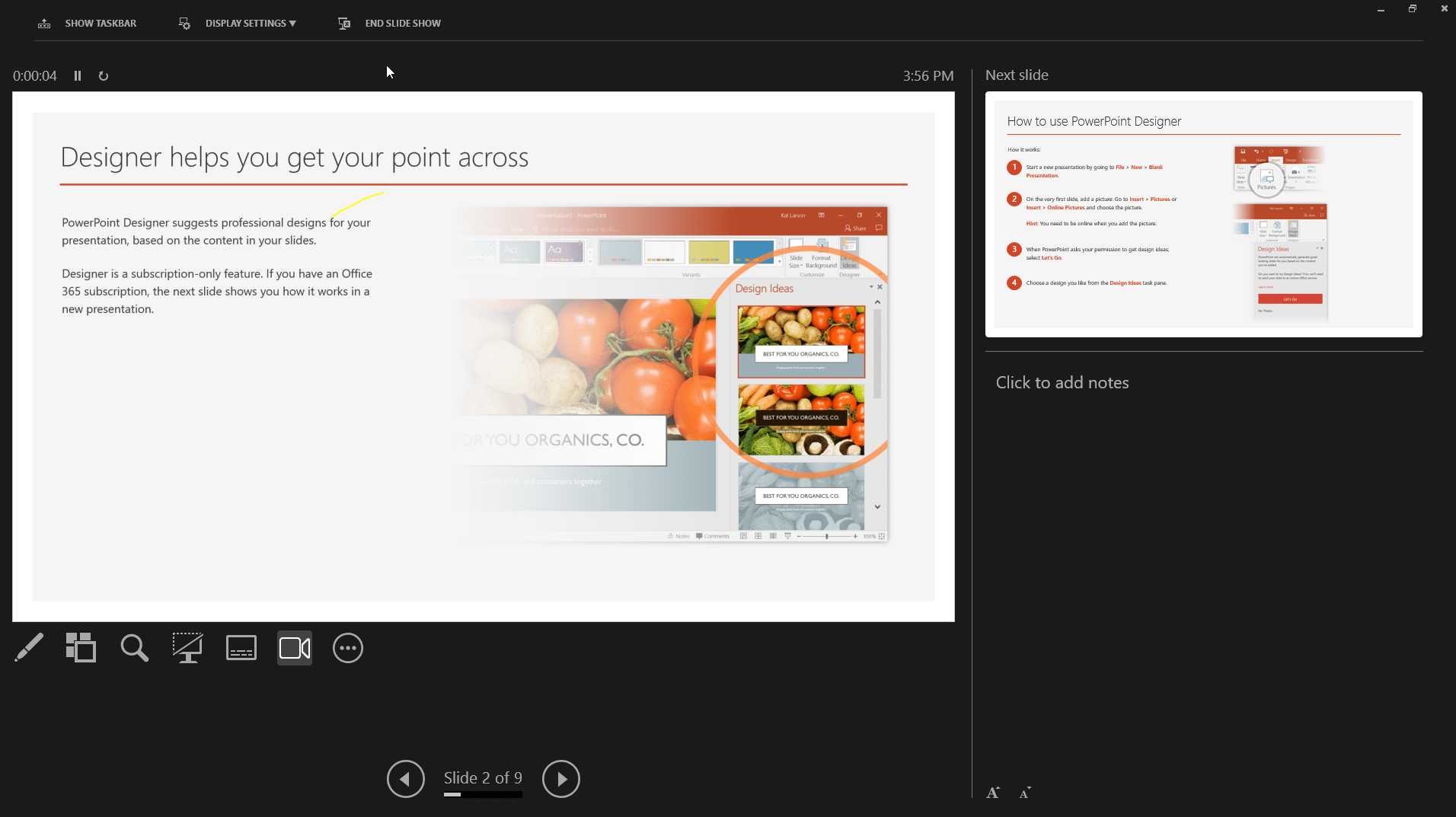
Presenter View allows you to see the following:
- Notes: If you’ve added notes to a slide, you can make sure you cover all the points you’re trying to make without relying on the slide itself.
- Next Slide: In addition to seeing your current slide, you can see the slide that’s coming up next to make sure you’re on-track and to make the transition between the slide seamless.
- Clock: Presenter View has a running timer on it to makes sure you don’t get too long-winded.
- On-screen Tools: You also have access to a digital laser pointers, highlighter, pen, and more to direct your audients to specific points on your slides.
So how do you get into presenter view? This one’s easy: Head to the “Slide Show” menu, and check the box for “Use Presenter View”. While you’re there you can select the monitor you want to display the slide show on (your projector, for example). The presenter view will show up on the other monitor:

Then when you start your presentation (hit the F5 key if you want it to fire up), you’ll see the view on one of your monitors:
Hopefully this will help you get through presentation anxiety and help you get your message across to your audience!