

 We like keyboard shortcuts because any time you don’t have to leave the keyboard to grab the mouse, you’ll be more productive. In the past we’ve featured Microsoft Teams keyboard shortcuts, Microsoft Word keyboard shortcuts, Windows Key shortcuts, handy run commands, Outlook shortcuts, Excel keyboard shortcuts, plain text paste shortcuts, some new zoom and paste shortcuts in Word and even Foreign Character shortcuts. Teams has recently introduced the capability of slash commands.
So what is a slash command? Simply, it’s a command proceeded by a “/” in your chat composition window. The “/” as the first character of the chat conversation tells the chat program that you are sending a command and not a regular chat so it processes it accordingly. Slash commands provide a quick and easy interface to take contextual actions, compose, navigate and complete frequent tasks without having to go through a bunch of menus in teams.
Slash commands are something that have been a staple of chat programs for decades. They originally came to popular use back in Internet Relay Chat (aka IRC) many moons ago (they had a pile of slash commands), most chat-based programs (Discord, Slack, etc…) have incorporated slash commands, and many multi-player games also have slash commands available.
Microsoft Teams now has a solid stable of slash commands available for use which they are constantly updating. You can see what’s available by just typing “/” in your chat window and you should see a window pop-up:
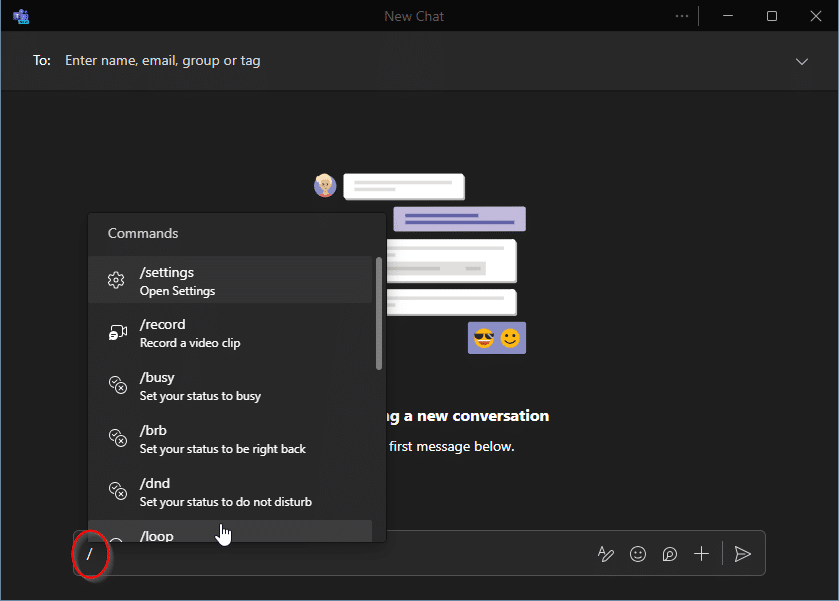
As of this writing (Microsoft keeps a running list here), here are the commands that are currently available and what they do (in alphabetical order):
- /apps Add an app.
- /available Set your status to available.
- /away Set your status to away.
- /brb Set your status to be right back.
- /busy Set your status to busy.
- /delete Delete the chat.
- /dnd Set your status to do not disturb.
- /hide Hide the chat.
- /leavechat Leave the chat.
- /leavemeeting Leave the meeting.
- /loop Add a loop paragraph.
- /meetnow Start or join a quick meeting.
- /mute Mute the chat.
- /offline Set your status to appear offline.
- /record Record a video clip.
- /settings Open settings.
- /shortcuts Open keyboard shortcuts
- /unmute Unmute the chat.
- /window Open chat in a new window.
If you combine these with the already available Teams keyboard shortcuts, you’ll get a lot more done in Teams without ever having to touch your mouse.